
How to Use a Clipboard Keyboard on iPhone
Set up Cliptop Keyboard to paste saved replies, links, and other clips on iPhone. Learn how Full Access, Pinboards, and image pasting work.
A clipboard keyboard lets you choose saved content while a text field is open. With Cliptop Keyboard, you can insert a saved reply, address, or link without returning to the note where you kept it.
To set it up, install Cliptop, add its keyboard in iPhone Settings, and enable Allow Full Access. Then hold the globe key in a text field and select Cliptop. Your saved clips appear in History and your Pinboards.
This guide covers setup and pasting. If you want to understand what your phone saves when you copy something, start with clipboard history on iPhone.
Save one clip before you start
Use a short, harmless phrase for your first test, such as “The new draft is ready for review.” Copy it, then open Cliptop to import the current text. If iOS asks whether Cliptop can paste, allow that action.
You can also save a link through the Share Sheet: open it in Safari, tap Share, choose Cliptop, and save it to History or a Pinboard.
Check that the item appears in the Cliptop app before you open the keyboard. This separates a keyboard setup problem from an empty library.
Add Cliptop Keyboard in iPhone Settings
- Install Cliptop for iPhone and iPad and open it to complete setup.
- Open Settings → General → Keyboard → Keyboards.
- Tap Add New Keyboard, then select Cliptop.
- Return to the keyboard list and tap Cliptop.
- Turn on Allow Full Access and confirm Allow.
Watch the setup video from Cliptop’s onboarding. The steps above give the written instructions.
Apple explains the keyboard list and switching controls in its keyboard settings guide. You can keep your usual keyboard installed and switch to Cliptop only when you need a saved item.
What Full Access means for Cliptop
Full Access is an iOS permission for custom keyboards. It can allow capabilities such as network access and writing to shared app data. It is a broad permission, so the keyboard provider’s behavior matters. Apple’s custom keyboard documentation explains these capabilities and limits.
Cliptop requires Full Access so its keyboard can connect to the Cliptop app and use your saved clips. Cliptop does not track what you type, store keystrokes, or send your typing to a server.
This setting is separate from Paste from Other Apps, which controls paste requests in the main app. It is also separate from optional iCloud Sync. Turning on Full Access does not turn on sync.
Paste your first saved reply
- Open a new note in Notes and tap the text area.
- Touch and hold the globe key, then choose Cliptop.
- Select History, or select the Pinboard where you saved your test phrase.
- Tap the phrase’s clip card.
The text appears at the cursor. Use the globe key to return to your normal keyboard and continue writing.
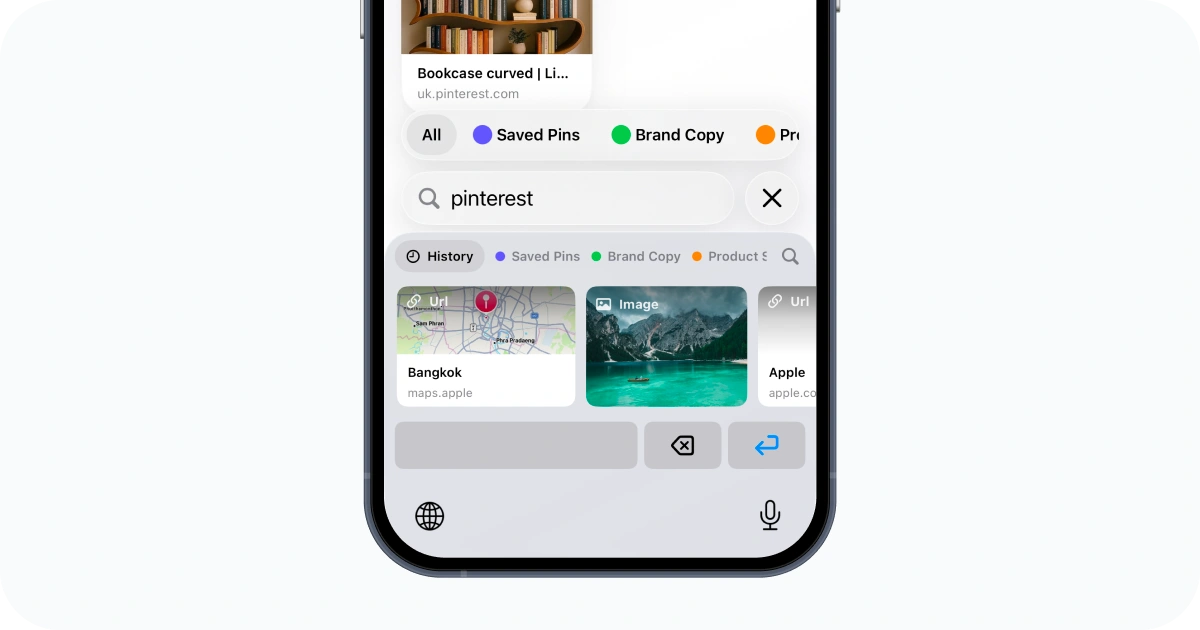
For daily use, save a small set of items that you need often: a booking link, delivery instructions, an office address, or a standard reply. You can then choose the right item instead of copying it from another app each time.
Use Pinboards for replies and project links
Create a Pinboard in Cliptop for a specific task, such as Client replies. Add the links and text you use for that task. The board appears as a tab in Cliptop Keyboard, next to History.
Keep the board small enough to browse. A few current replies are easier to choose from than a long list of old messages. Review a saved reply before sending it, especially if it contains dates, prices, or a person’s name.
The keyboard’s magnifying-glass button opens search in the main Cliptop app. Find and copy the item there, then return to your original app to paste. Use a Pinboard when you want frequent items available directly in the keyboard.
Text and images paste differently
| Saved content | What happens when you tap it |
|---|---|
| Text or code | Cliptop inserts the text into the current field. |
| Link | Cliptop inserts the URL. |
| Color | Cliptop inserts the color value as text. |
| Image | Cliptop copies the image. Use Paste in the destination app. |
An image needs a destination that accepts images. A plain text field cannot display it. For an image test, use a new note in Notes, tap the image in Cliptop Keyboard, then touch and hold in the note and choose Paste.
If you see Copied image, the copy step is complete. The image will not appear until you perform the paste step.
Use clips from your Mac
If you prepare replies or collect links on your Mac, enable iCloud Sync in Cliptop on both devices. Wait for the clips to appear in the iPhone app, then use them from the keyboard.
Cliptop sync uses your private iCloud database. It gives saved content a place in your library after the immediate copy-and-paste moment. For the difference between this and Apple’s nearby-device handoff, read how to copy and paste between iPhone, iPad, and Mac.
If the keyboard does not show your clips
| What you see | What to check |
|---|---|
| Cliptop is missing from the keyboard list | Confirm the app is installed and opened, then add it under Add New Keyboard. |
| A message asks for Full Access | Open Cliptop’s entry in the iOS keyboard list and enable Allow Full Access. Switch away from the keyboard and back. |
| No clips yet | Open Cliptop and confirm the item is saved. Check whether you selected History or an empty Pinboard. |
| Mac clips are missing | Confirm they appear in the iPhone app first. Use the iCloud Sync help guide if they do not. |
| The normal keyboard appears in a password field | iOS uses its system keyboard in secure fields. Some apps also disable custom keyboards. Test in a normal Notes field. |
The keyboard does not record every copy you make in the background. Save items through the Share Sheet, import current text in Cliptop, or sync saved clips from your Mac.
Start with the replies you use most
Choose three items you copy repeatedly, save them in a Pinboard, and test them in Notes. Once the keyboard is set up, those items are available when you need to write a reply.
Download Cliptop for iPhone and iPad. For storage and permission controls, read Is Clipboard History Safe?.
 Download Cliptop for Mac