
Is Clipboard History Safe?
Clipboard history can contain passwords, screenshots, files, and private links. Use this checklist to evaluate storage, sync, permissions, capture controls, and locks.
Clipboard history can be safe, but it should never be treated as harmless data. A clipboard manager may remember passwords, private links, screenshots, client details, files, API tokens, and anything else you copied while working.
Before trusting one, check where history is stored, whether it syncs, what it refuses to capture, how it protects sensitive items, which permissions it requests, and how quickly you can pause or clear it.
The safest clipboard manager is not the one that promises the clipboard contains nothing sensitive. It is the one designed around the fact that sometimes it will.
Why clipboard history needs a privacy review
The ordinary Mac clipboard feels temporary: copy something, paste it, then copy something else. Clipboard history changes that by making older items searchable and reusable.
That is useful when you need a sentence, screenshot, file, color, URL, or command from earlier. It also means a passing piece of information can become stored data.
Apple warns that sensitive information may appear in Clipboard history in Spotlight. The same caution applies to third-party clipboard managers. The right question is not simply whether the app works. It is whether its privacy model fits the information that crosses your clipboard.
A practical clipboard-manager privacy checklist
Use these questions for Cliptop or any other clipboard manager.
1. Where is clipboard history stored?
Look for a direct answer: on the device, in the developer’s cloud, in your own cloud account, or some combination of these.
Local storage reduces the number of systems that receive copied data. Cloud storage can make history available on more devices, but the app should explain who operates the service and what account or database holds the content.
Cliptop stores clipboard history locally by default. You do not need a Cliptop account to keep or search history on your Mac, and clipboard contents are not sent to Cliptop servers.
2. Is sync optional, and where does synced data go?
Cross-device clipboard history is useful only when the privacy boundary is clear.
Cliptop’s iCloud Sync is optional. When enabled, clips and Pinboards sync through your private iCloud database using Apple’s CloudKit service. That is separate from Cliptop’s own website, licensing, and analytics systems.
The iPhone clipboard-history guide shows how this private sync fits alongside the iOS Share Sheet, Cliptop Keyboard, and Apple’s pasteboard controls.
If you do not need history on another device, keep sync off. If you do, confirm that every device using the account has a passcode and an up-to-date operating system.
3. Can you exclude apps and concealed clipboard content?
A password manager, private work app, or internal admin tool should not have to behave like a normal source of reusable clipboard history.
Cliptop supports Ignored Apps, including common password managers in its default list. Copies originating from ignored apps are skipped before they enter history. You can add other apps that should never contribute to clipboard history.
Cliptop also skips clipboard content carrying the standard concealed-content marker. This lets participating apps identify copies that should not be recorded.
No exclusion list can anticipate every workflow. Add your own finance, healthcare, client, or administrative apps when their copied content should always remain temporary.
4. What happens when sensitive-looking text is detected?
Automated detection can help, but it should not be presented as perfect. Secrets can take many forms, and ordinary text can sometimes resemble a token or password.
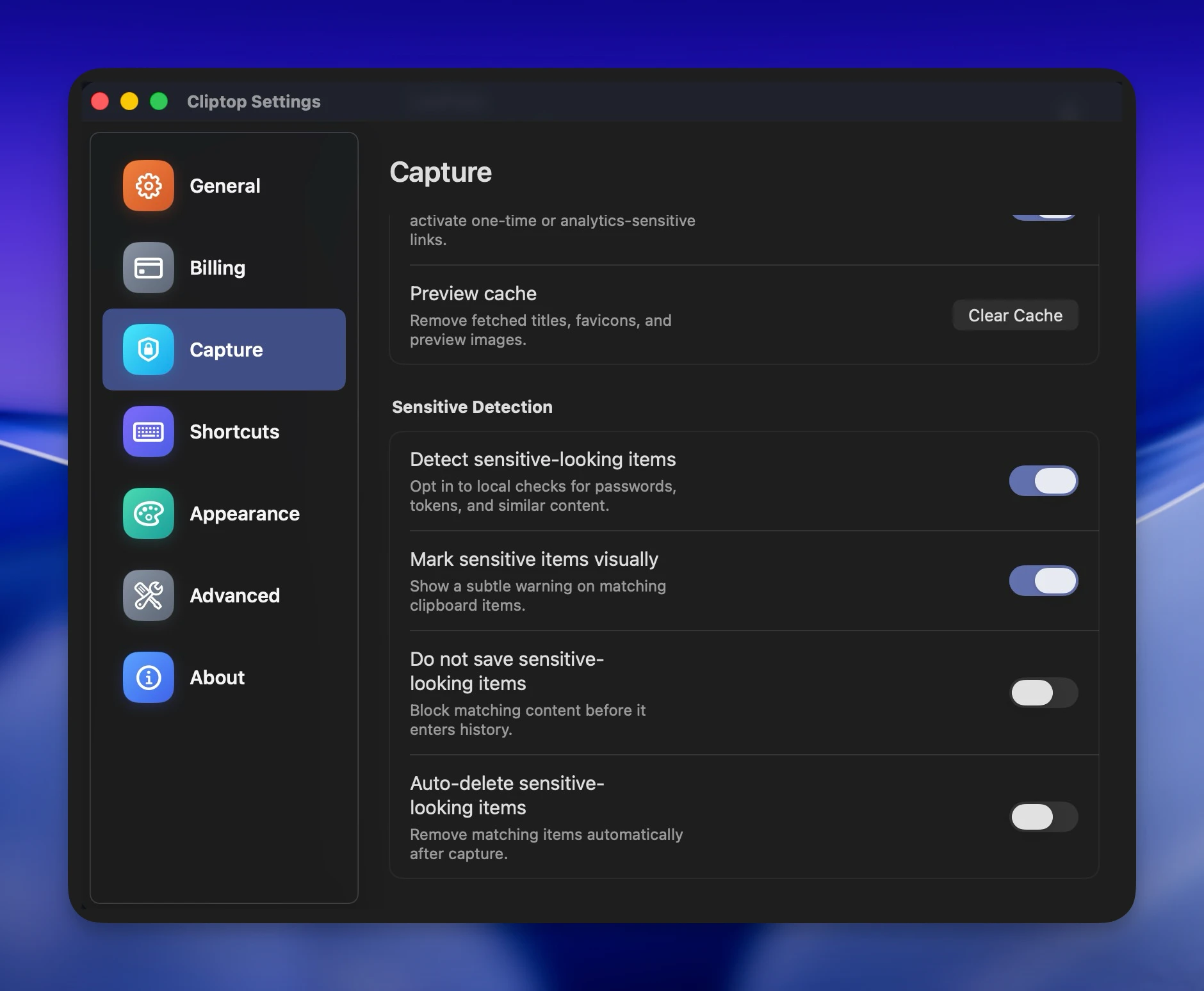
Cliptop offers optional, local Sensitive Detection with separate controls:
- Blur sensitive items hides matching clipboard text in the panel until you choose to inspect it.
- Do not save sensitive-looking items blocks matching content before it enters history.
- Auto-delete sensitive-looking items removes matching items automatically after capture.
These checks run locally. They are a useful second layer, not a substitute for ignored apps, Pause Capture, or deleting something you did not intend to keep.
5. Can you pause capture before sensitive work?
Sometimes the safest rule is simply: do not record the next few copies.
Cliptop’s Pause Capture control can stop recording for 30 minutes, 1, 2, 4, or 8 hours, for the rest of the day, or indefinitely. Capture can be resumed manually at any time.
This is useful before working with credentials, production systems, legal documents, financial records, or a client’s private data. A visible pause is easier to trust than hoping detection recognizes every sensitive value.
6. Can individual clips or collections be locked?
Some copied information is worth keeping but should not remain immediately visible to anyone using the Mac.
Cliptop can Lock Clip or Lock Pinboard. Protected clipboard contents are stored in an encrypted envelope and require Touch ID or the Mac login password before they can be viewed or used.
Locks are useful for reusable information that belongs in your workflow but needs an extra access boundary. They do not replace full-disk protection, a strong Mac password, or a password manager for credentials.
7. What does each Mac permission enable?
Powerful permissions should map to a specific feature, and the app should remain useful if you decline an optional one.
Cliptop uses optional Accessibility permission for Direct Paste. It lets Cliptop return focus to the app you were using and send the paste command on your behalf. It does not unlock additional clipboard-history capture.
Without Accessibility permission, Cliptop can still save local history, search it, preview items, and copy a selected item back to the clipboard. You then paste manually with Command-V. See the Direct Paste permission guide for the exact setup and fallback behavior.
Apple recommends granting Accessibility access only to apps you know and trust. You can review or revoke it under System Settings → Privacy & Security → Accessibility. Apple’s Accessibility permission guide explains the system control.
8. Does the app explain network-facing features?
An app can keep core history local while still offering optional features that fetch data.
For example, Cliptop can generate previews for copied links. Fetching a page title, favicon, or preview image contacts the website and may activate a one-time or analytics-sensitive link. The setting explains this tradeoff, and Cliptop lets you disable link previews or clear the preview cache.
Look for this level of specificity. “Local-first” should not be used to hide optional network behavior.
9. Can you clear stored data?
A privacy model is incomplete if retention only moves in one direction.
Check whether the app lets you delete individual items, clear history, control retention, remove preview caches, and turn off sync. Those controls should be available without contacting support.
Cliptop provides individual deletion, history cleanup and retention controls, clear-history actions, and a separate link-preview cache control.
10. Did you download the real app?
Clipboard utilities deserve extra care because copied text can include credentials and private work.
Download from the developer’s official website or the Mac App Store. Check the developer name, use the current download link, and do not bypass a macOS security warning until you have verified the source. Keep Gatekeeper enabled and install updates from the same trusted channel.
Raw backlink counts, directory listings, and look-alike download pages are not proof that a build is legitimate.
How Cliptop approaches clipboard privacy
Cliptop starts with a local-first default, then makes additional capabilities opt-in or controllable:
- Clipboard history stays on the Mac by default.
- Optional iCloud Sync uses your private iCloud database.
- Clipboard contents are not sent to Cliptop servers for sync.
- Ignored Apps and concealed-content markers prevent selected copies from entering history.
- Local Sensitive Detection can blur, block, or automatically remove matching items.
- Pause Capture stops recording for a chosen period or indefinitely.
- Clip and Pinboard locks encrypt protected contents and require authentication.
- Direct Paste’s Accessibility permission is optional.
- Link previews can be disabled and their cache cleared.
- History items and retained data can be deleted.
The important distinction is control. Local-first does not mean that every optional feature has no network surface. It means the core history works locally, and features that cross that boundary are explained separately.
What no clipboard manager can promise
No clipboard manager can guarantee that sensitive detection will recognize every secret. No ignored-app list can know every private app in your workflow. A lock cannot protect an already-unlocked Mac from everything an authorized user can do. Cloud sync adds devices and account security to the trust boundary.
Use several layers together:
- Keep private source apps ignored.
- Pause capture before unusually sensitive work.
- Enable the sensitive-item response that fits your risk level.
- Lock reusable private clips or Pinboards.
- Delete items you do not need.
- Keep your Mac, Apple Account, and app updated.
That is more dependable than relying on one “private” label.
Frequently asked questions
Is clipboard history safe on Mac?
It can be, provided the app clearly explains storage and sync, limits capture, protects sensitive items, requests only relevant permissions, and gives you deletion controls. Clipboard history still deserves the same care as other sensitive local data.
Does Cliptop upload clipboard history to its servers?
No. Cliptop stores history locally by default. Optional iCloud Sync uses your private iCloud database, and clipboard contents are not sent to Cliptop servers for sync.
Can Cliptop avoid saving passwords and sensitive text?
Cliptop skips concealed clipboard content, supports Ignored Apps, and offers local detection that can blur, block, or automatically delete sensitive-looking text. Detection is a safeguard, not a guarantee that every secret will be recognized.
Why does Cliptop need Accessibility permission?
It is optional and used for Direct Paste so Cliptop can send a paste command to the app you were using. History, search, and manual paste work without it.
Can I temporarily stop clipboard history?
Yes. Use Pause Capture for a timed pause, the rest of the day, or indefinitely. Resume it whenever you are ready.
Quick answer
A safe clipboard manager should be explicit about local storage, sync, exclusions, sensitive content, permissions, retention, and deletion. Cliptop keeps clipboard history local by default and adds optional private iCloud Sync, Ignored Apps, Sensitive Detection, Pause Capture, encrypted locks, and clear permission boundaries.
If that matches how you want copied work handled, download Cliptop for Mac. For a broader view of searchable history and actions, see the Cliptop clipboard manager for Mac.
 Download Cliptop for Mac