
How to See and Keep Clipboard History on iPhone
Keep copied text, links, images, and files within reach on your iPhone. See how Cliptop turns useful clips into a searchable library across your Apple devices.
Want to find a link, address, or snippet you copied earlier on your iPhone? Cliptop gives useful clips a searchable home, so you can keep them close instead of retracing your steps.
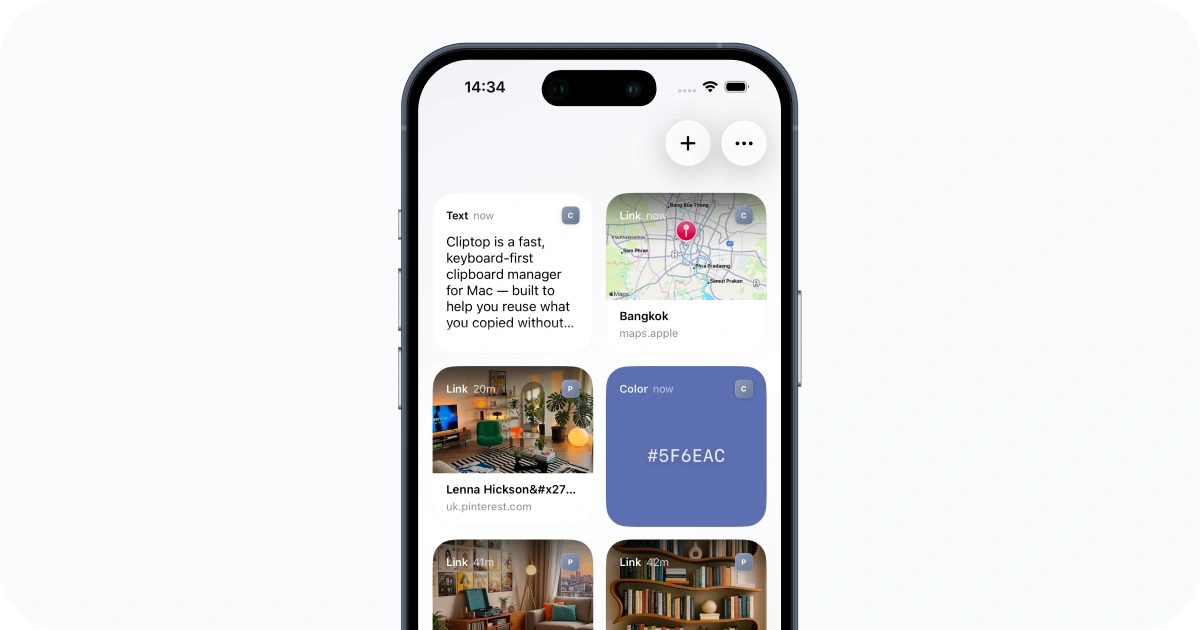
You can save something directly from the iOS Share Sheet, import the text currently on your clipboard, or sync clips privately from your Mac. When you need the item again, search for it in Cliptop or insert it from Cliptop Keyboard.
The right workflow depends on what you want to do:
- Paste the item you just copied: use the iPhone system clipboard.
- Move the current item to a nearby Apple device: use Universal Clipboard.
- Keep several items and find them later: save or sync them with Cliptop.
Three ways to use copied content on iPhone
The iPhone clipboard, Universal Clipboard, and Cliptop each serve a different moment:
| Feature | Best for | What stays available | Searchable history? |
|---|---|---|---|
| iPhone system clipboard | Your next paste | The current copied item | No |
| Universal Clipboard | An immediate handoff to a nearby Apple device | The current item for a short time | No |
| Cliptop | Keeping and reusing useful content | Selected, imported, and synced clips | Yes |
The system clipboard handles quick copy and paste between apps. Copying something new normally replaces the current item, so it works best when you plan to paste next.
Universal Clipboard extends that immediate handoff across nearby Apple devices signed in to the same Apple Account. It is ideal for copying on your iPhone and pasting on your Mac a moment later.
Cliptop adds the library. It keeps the clips you choose, makes them searchable, and gives reusable content a place to live beyond the next paste.
How to see what is currently copied
To check the current text on your iPhone:
- Open Notes or another app with a text field.
- Create a temporary note.
- Touch and hold in the text area.
- Tap Paste.
You will see the current clipboard item if the destination supports its format. For example, copied content may include plain text, formatted text, a URL, or image data, and the receiving app chooses the format it can use.
If iOS shows an Allow Paste prompt, you can approve access for that action. The prompt is part of Apple’s pasteboard privacy controls and appears when one app requests content copied in another.
Build a searchable clipboard library with Cliptop
Cliptop gives you four practical ways to keep copied work on your iPhone. Choose the one that fits where the content starts and where you want to use it next.
Find clips from your Mac on iPhone
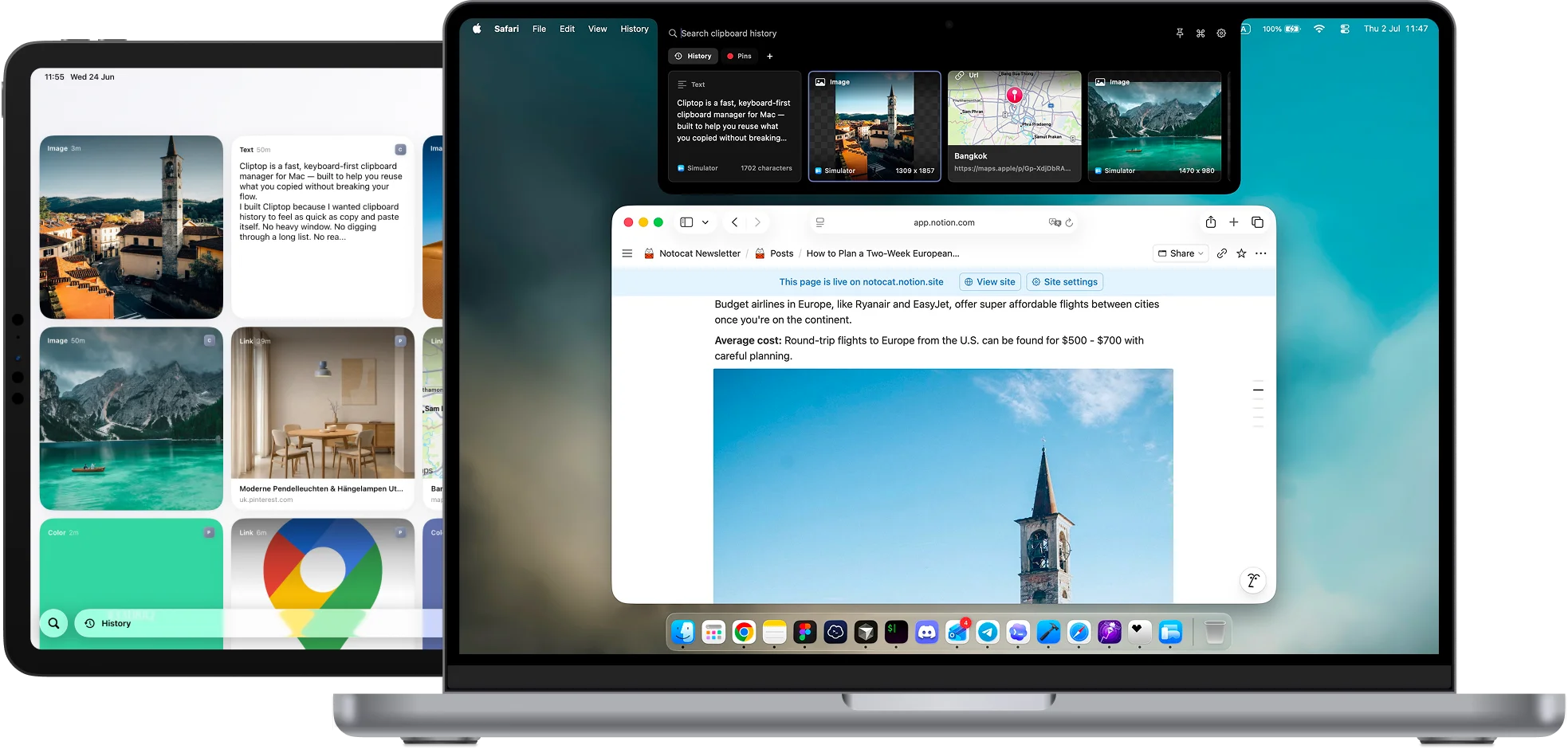
If most of your copying happens on a Mac, enable iCloud Sync in Cliptop on your devices. Your clips and Pinboards can then appear in Cliptop on iPhone and iPad through your private iCloud database.
Open Cliptop on your iPhone, search for what you remember, and reuse the result. A link copied yesterday or a snippet saved last week remains within reach without depending on Universal Clipboard’s short handoff window.
Sync is optional. Cliptop keeps clipboard history local on your Mac by default, and it does not send clipboard contents to Cliptop servers for sync.
Save content from the iOS Share Sheet
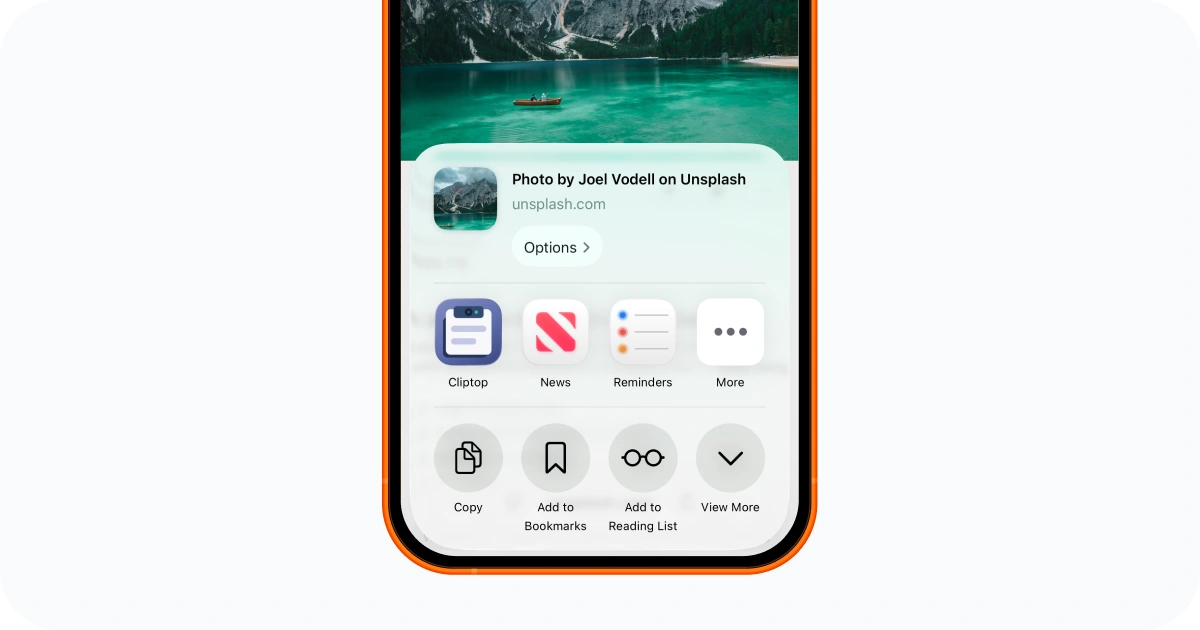
The Share Sheet is the quickest way to keep something useful while you are looking at it:
- Open a link, selection, image, or file.
- Tap the system Share button.
- Choose Cliptop.
- Save the item to History or a Pinboard.
Cliptop supports shared text, links, images, and files. You can use it from Safari, Photos, Notes, Files, and other apps that offer standard sharing.
This gives you a simple habit: when something is worth finding again, send it to Cliptop and choose where it belongs.
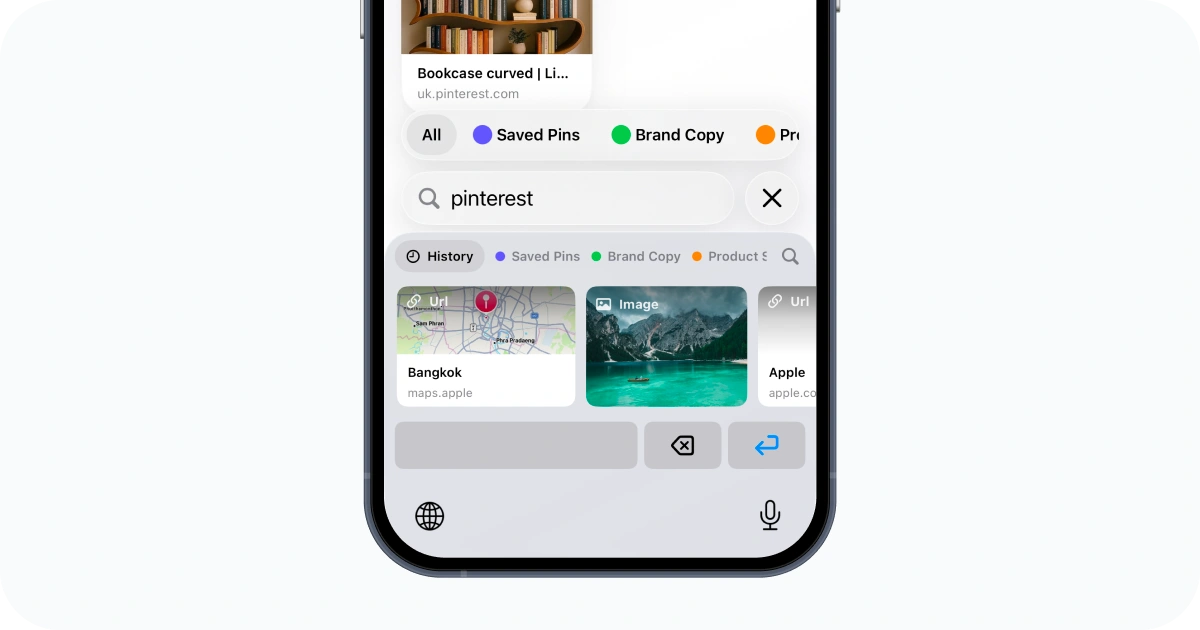
Reuse a saved clip with Cliptop Keyboard
Cliptop Keyboard brings saved text, links, code, colors, and other compatible clips into the text field you are already using.
Enable it in Settings → General → Keyboard → Keyboards. Then switch keyboards with the globe key, find your clip, and select it. Text-based clips can be inserted into the current field, while other supported items can be copied for use in the destination app.
iOS requests Full Access so the keyboard extension can connect to Cliptop’s shared data. Cliptop does not use the keyboard to track your typing, store keystrokes, or send what you type to a server.
Import the text you just copied
Already copied some text on your iPhone? Open Cliptop to import the current item and keep it for later.
During setup, iOS may ask whether Cliptop can paste from the source app. To allow this workflow without repeated prompts, open Cliptop in iOS Settings, choose Paste from Other Apps, and select Allow. You can also keep the prompt and approve each request as needed.
This method saves the text currently available when Cliptop opens. Use the Share Sheet for images, files, or content you want to organize at the moment you find it.
Choose the fastest way to save each item
- Copied on your Mac: turn on private iCloud Sync and search for the clip on iPhone.
- Open in Safari, Photos, Notes, or Files: save it through the Share Sheet.
- Currently copied as text on your iPhone: open Cliptop and import it.
- Needed inside another app: find and insert it with Cliptop Keyboard.
- Used again and again: place it in a Pinboard for faster access.
The methods work together. You can save a link from Safari, organize it in a Pinboard, and paste it later from Cliptop Keyboard without leaving the app where you need it.
What iOS clipboard privacy means for history
iOS protects pasteboard access and limits what apps can do in the background. This is why dependable iPhone clipboard workflows rely on actions you can see and control, such as sharing an item, opening the app, using a keyboard extension, or syncing from your Mac.
That model has a practical benefit: you decide what becomes part of your long-term library. Cliptop works with these iOS controls instead of promising invisible, continuous capture that the platform is not designed to provide.
Apple’s pasteboard documentation explains how apps exchange copied data and how iOS handles access to content from other apps.
Keep clipboard history private
Clipboard content can include verification codes, private links, addresses, passwords, and client data. Cliptop gives you clear control over what is stored and synced:
- Clipboard history stays local on your Mac by default.
- Optional sync uses your private iCloud database.
- Share Sheet saves happen only when you choose Cliptop.
- Paste from Other Apps follows iOS permission controls.
- Cliptop Keyboard explains why Full Access is required.
- Individual clips and Pinboards can be locked.
- Unwanted items can be deleted at any time.
For a fuller evaluation checklist, read Is Clipboard History Safe?.
Frequently asked questions
Does iPhone have built-in clipboard history?
iPhone keeps the current copied item ready to paste. As of iOS 26, Apple does not provide a built-in screen for browsing older copies. Use a clipboard app when you want to keep selected items and find them later.
Where is the clipboard on an iPhone?
The clipboard works behind the scenes rather than appearing as an app or Settings page. Tap a text field and choose Paste to use the current item. Open Cliptop to browse items you previously saved or synced.
Is Universal Clipboard the same as clipboard history?
Universal Clipboard is for an immediate handoff of the current item between nearby Apple devices. Clipboard history keeps multiple items available for search and reuse.
Can an iPhone clipboard manager save every copy automatically?
iOS protects pasteboard access and limits background activity. Reliable workflows use the Share Sheet, an app import, a keyboard extension, or private sync from a Mac.
How does Cliptop save clipboard history on iPhone?
Cliptop can display history synced privately from your Mac, save content from the Share Sheet, import currently copied text when the app opens, and make saved clips available through Cliptop Keyboard.
Keep useful clips within reach
The iPhone system clipboard is perfect for your next paste, while Universal Clipboard handles quick handoffs between nearby Apple devices. Cliptop gives important content a longer life with searchable history, Pinboards, private sync, and several clear ways to save what matters.
Download Cliptop for iPhone and iPad and turn the links, snippets, images, and files you want to keep into a library you can find again.
For Mac-specific history, including Apple’s built-in Spotlight option and dedicated history workflows, read How to See Clipboard History on Mac.
 Download Cliptop for Mac