
How to Copy and Paste Between iPhone, iPad, and Mac
Copy on one Apple device and paste on another with Universal Clipboard, then use Cliptop when you want important clips to stay searchable across your devices.
A link arrives in Messages on your iPhone, but you need it in a document on your Mac. You can copy it on your phone and paste it straight into the document with Universal Clipboard. There is no need to email it to yourself.
The setup takes place in your device settings. Once it is ready, you use the same Copy and Paste commands you already know. You can also save useful links in Cliptop to find them after copying something else.
Quick setup for Universal Clipboard
Apple’s Universal Clipboard works between nearby Apple devices signed in to the same Apple Account. Turn on Wi-Fi and Bluetooth on both devices, and make sure two-factor authentication is enabled for the account. You also need Handoff, which you can find in these settings.
Turn on Handoff on iPhone or iPad
- Open Settings and tap General.
- Open AirPlay & Continuity.
- Turn on Handoff.
Turn on Handoff on Mac
- Open System Settings and choose General.
- Open AirDrop & Handoff.
- Turn on Allow Handoff between this Mac and your iCloud devices.
Copy from iPhone or iPad and paste on Mac
On your iPhone or iPad, select the content and tap Copy. Then click where you want it on your nearby Mac and press Command-V.
For the link in Messages, that is the whole process. It also works with text, photos, and other supported content, as long as the app you paste into accepts that format.
Copy from Mac and paste on iPhone or iPad
To go the other way, select the content on your Mac and press Command-C. Open the destination app on your iPhone or iPad, touch and hold in the text field, then tap Paste.
For example, you might find an address in Mail on your Mac and paste it into Maps on your iPhone before leaving home.
What happens to the item after you paste it?
Apple describes copied content as available through Universal Clipboard for a short time. It does not give you a history to browse later.
If you paste the link into your document, you have a copy there. If you forget to paste it and copy something else, you will need to return to the original message to find it. Saving useful clips in advance can avoid that search.
Keep copied content available with Cliptop
Suppose you are collecting links for a project on your Mac. Add the ones you want to keep to a Cliptop Pinboard. With iCloud Sync enabled in Cliptop on your devices, you can open the same Pinboard on your iPhone or iPad later.
You can also search your synced history for a link you copied on your Mac. You do not have to remember which app it came from or copy it again just to move it to your phone.
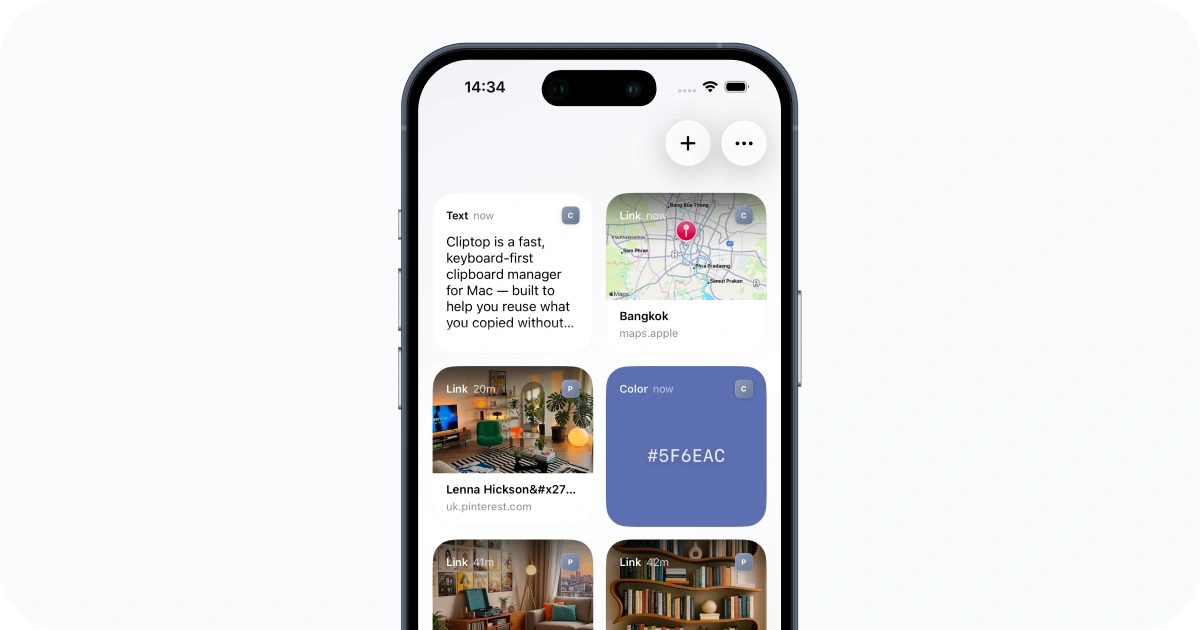
When you find a useful link on your phone, use the iOS Share Sheet to save it to Cliptop. To insert saved text or links into another app, you can use Cliptop Keyboard. The iPhone clipboard-history guide covers these options and importing from the clipboard.
Fix Universal Clipboard when copy and paste stops working
First, try a short line of text in Notes. Copy it on one device and paste it into Notes on the other. This gives you a simple test without the formatting or content restrictions of another app.
If the text does not appear, check the following:
- Both devices use the same Apple Account, with two-factor authentication enabled.
- Wi-Fi, Bluetooth, and Handoff are on for both devices.
- The devices are close to each other.
If those settings are correct, restart the affected devices and repeat the Notes test. Once plain text works, try the original content again.
If Universal Clipboard succeeds but Cliptop history is missing on one device, follow the Cliptop iCloud Sync repair guide.
Keep cross-device clipboard history private
Cliptop keeps clipboard history on your Mac by default. Enabling iCloud Sync lets clips and Pinboards sync through your private iCloud database. Cliptop does not send their contents to its own servers for sync.
Saved clips stay available longer than a temporary clipboard item, so delete anything you no longer want to keep. If you prefer to keep your Mac history on that device, leave sync off. Is Clipboard History Safe? explains the storage and permission settings in more detail.
Frequently asked questions
How do I copy and paste between my iPhone and Mac?
Sign both devices in to the same Apple Account, turn on Wi-Fi, Bluetooth, and Handoff, and keep them nearby. Copy normally on one device, then paste normally on the other.
Why is Universal Clipboard not working?
Check the Apple Account, two-factor authentication, Wi-Fi, Bluetooth, Handoff, and device proximity. Test a short piece of plain text in Notes before troubleshooting a specific app or content type.
How long does Universal Clipboard keep copied content?
Apple describes the content as available for a short time. Universal Clipboard is designed for an immediate handoff rather than long-term storage.
Can I find something I copied earlier on another device?
Universal Clipboard shares the current copied item. Cliptop can keep selected, imported, and synced clips in a searchable library so you can find them later.
Does Cliptop send synced clipboard history to its own servers?
No. Cliptop keeps history local on your Mac by default. Optional iCloud Sync uses your private iCloud database and does not send clipboard contents to Cliptop servers for sync.
You can download Cliptop for Mac, iPhone, and iPad to try saved history and Pinboards. For more on the Mac’s built-in clipboard, see How to See Clipboard History on Mac.
References
Apple guidance reviewed on August 4, 2026: Use Universal Clipboard to copy and paste between your Apple devices and Copy and paste between devices from the Mac User Guide.
 Download Cliptop for Mac