Memorable
Open clipboard history from a place you remember.
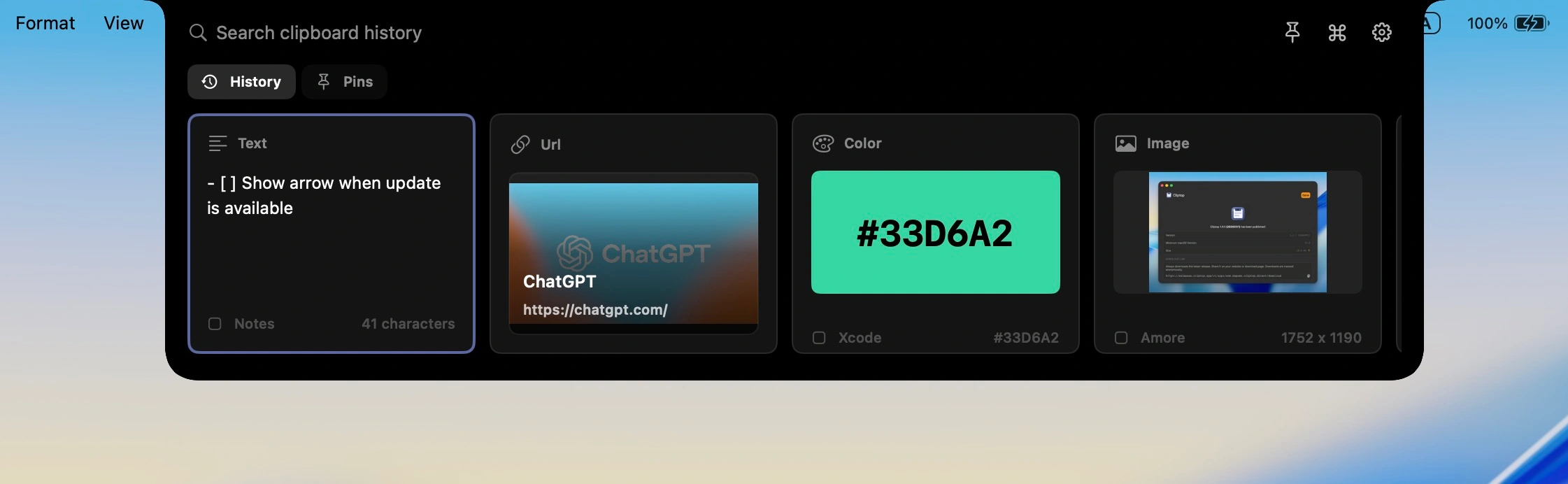
Instead of hunting for a window, Cliptop appears from the notch area and keeps the interaction anchored to the MacBook screen.
 Cliptop
MacBook notch clipboard manager
Cliptop opens from the notch so recent copies, search, and paste actions are always close. Recover text, links, code, screenshots, files, images, and colors without turning your clipboard into another app to manage.
In daily use
“Cliptop saves me from a surprising amount of context switching. I used to be constantly switching between apps and my notepad copying prompts, links, snippets, and passwords, but having clipboard history right where I'm working with a bunch of keyboard shortcuts makes the whole workflow flow nicely.”

The notch hook
Mac power users already live near the top of the screen: menu bar, status items, app controls, and keyboard shortcuts. Cliptop makes that space useful by putting clipboard history one gesture away.
Memorable
Instead of hunting for a window, Cliptop appears from the notch area and keeps the interaction anchored to the MacBook screen.
Fast
Open Cliptop and type. Recent copies, previews, and actions are available without moving work into a separate clipboard library.
Flexible
The notch is the signature entry point. Without one, hover over the middle of the menu bar or use the keyboard shortcut.
Useful
Paste plain text, clean URLs, copy Markdown, inspect colors, and paste back from the same compact command center.
How it works
The goal is simple: get back the item you need and act on it before your attention leaves the current app.
Hover near the MacBook notch. Without one, hover over the middle of the menu bar or press Shift + Cmd + V.
Find copied text, links, code snippets, screenshots, files, images, and colors with previews that make the right item obvious.
Use Direct Paste when enabled, or restore the item to the clipboard and paste manually. Run format-specific actions when the copied item needs cleanup.
Works like a Mac utility
The visual hook gets attention, but the product still has to be dependable for daily work: fast, local, keyboard-friendly, and clear about permissions.
iCloud Sync is optional and uses your private iCloud database when enabled.
Accessibility is only needed for Direct Paste. Cliptop still works without it by restoring items to the clipboard.
When there is no notch, hover over the middle of the menu bar or press Shift + Cmd + V.
Pinned for work
“Cliptop allows me to access links, keys and other commonly used information throughout the workday much easier. No more going between notes. Instead, I have everything pinned and can reuse it anywhere I need.”

Early bird pricing
Try every Pro feature for 7 days, then choose yearly or lifetime.
Trial
Try every Cliptop Pro feature from the Mac app.
7-day trial
 Download free trial
Yearly
Full Cliptop Pro access across your devices for one year.
per year
Lifetime
Best valuePay once and keep Cliptop Pro across your devices.
one-time purchase
Share a video on how you use Cliptop on social media and get Pro for free
Instagram Reels, TikTok, or YouTube Shorts.More devices
Get in touch if you need to cover more Macs, set up Cliptop for your team, or talk through the right plan for your workflow.
Already bought Cliptop?Recover your license key.
Questions
No. On a Mac or external display without a notch, hover over the middle of the menu bar to open Cliptop, or press Shift + Cmd + V.
The notch sits at the top center of the screen, close to the menu bar and away from your document content. That makes it a natural place to reveal a compact clipboard command center without covering the app you are using.
Cliptop still works. If the active screen has no notch, hover over the middle of its menu bar to open Cliptop, or press Shift + Cmd + V.
No. Notch access is just an opening method. Clipboard history is local by default, iCloud Sync is optional, and Direct Paste remains optional.
Cliptop for Mac, iPhone, and iPad
Start with the Mac app, then keep clips and pinboards available on iPhone and iPad with optional private iCloud Sync.