
How to See Clipboard History on Mac
Learn how to see clipboard history on Mac with macOS Tahoe Spotlight, what the built-in clipboard history is good for, and when a dedicated clipboard manager helps.
Quick answer: on macOS Tahoe or later, press Command-Space to open Spotlight, then click the Clipboard button or press Command-4. Search for the copied item, copy it from history, then paste it where you need it.
That is the native way to see clipboard history on Mac. It is the right place to start if you only need to recover something once in a while.
If you use clipboard history every day for links, code, screenshots, files, colors, snippets, customer replies, or cleanup actions, Spotlight may not be enough. That is where a dedicated Mac clipboard manager like Cliptop makes more sense.
Does macOS Have Clipboard History?
Yes, macOS Tahoe or later has Clipboard history in Spotlight. Apple’s Mac User Guide says you can open Spotlight, switch to Clipboard with the Clipboard button or Command-4, search your Clipboard history, copy an item from it, and clear the history.
If you are on an older macOS version, the normal clipboard still works the old way: Command-C copies, Command-V pastes, and the next copied item replaces the previous one. In that case, you need a clipboard manager if you want searchable copy history.
There is one more Apple feature people confuse with clipboard history: Universal Clipboard. Universal Clipboard lets you copy on one Apple device and paste on another for a short time. It is useful, but it is not the same as a searchable clipboard history.
On iPhone and iPad, the current clipboard and saved clipboard history serve different jobs. The native clipboard handles the next paste, while Cliptop can keep selected and synced clips available for later.
How to See Clipboard History on Mac with Spotlight
If your Mac is running macOS Tahoe or later, try the native feature first.
- Press Command-Space to open Spotlight.
- Click the Clipboard button to the right of the search field, or press Command-4.
- Type a word, phrase, file name, or link you remember from the copied item.
- Copy the item from Clipboard history.
- Click where you want the item to appear.
- Press Command-V to paste it.
You can also clear the native history from Spotlight. Apple documents a clear-history option from the More button in the Clipboard history view.
The first time you use it, macOS may ask you to enable Clipboard history in Spotlight. Apple also warns that sensitive information may appear in Clipboard. That warning is worth taking seriously because clipboard history can include private links, passwords, recovery codes, screenshots, customer details, and anything else you copy during normal work.
When Spotlight Clipboard History Is Enough
Spotlight Clipboard history is enough when clipboard history is a backup plan, not a workflow.
Use the built-in feature if:
- You only lose a copied item occasionally.
- You prefer native macOS features before installing another app.
- You mostly need to recover recent text, links, images, or files.
- You are comfortable copying the old item from Spotlight, then pasting it manually.
- You do not need saved groups, pinboards, format cleanup, or paste actions.
For example, say you copy a quote from Safari, then copy a Slack link, then realize you still need the quote. Spotlight Clipboard history is a good answer. Open Spotlight, switch to Clipboard, search a word from the quote, copy it back, and paste it.
That is exactly the kind of small recovery moment the native feature handles well.
When a Dedicated Clipboard Manager Is Worth It
The native feature starts to feel limited when clipboard history becomes part of how you work.
In real Mac work, the clipboard often carries more than a missed sentence. It carries support replies, terminal commands, code snippets, research links, screenshots, image files, file paths, hex colors, prompts, customer-safe templates, and formatting you do not want to paste by accident.
That is where a dedicated clipboard manager helps. Cliptop is built around the full loop: open, search, preview, paste, and act on the item you copied.
Use Cliptop if you want to:
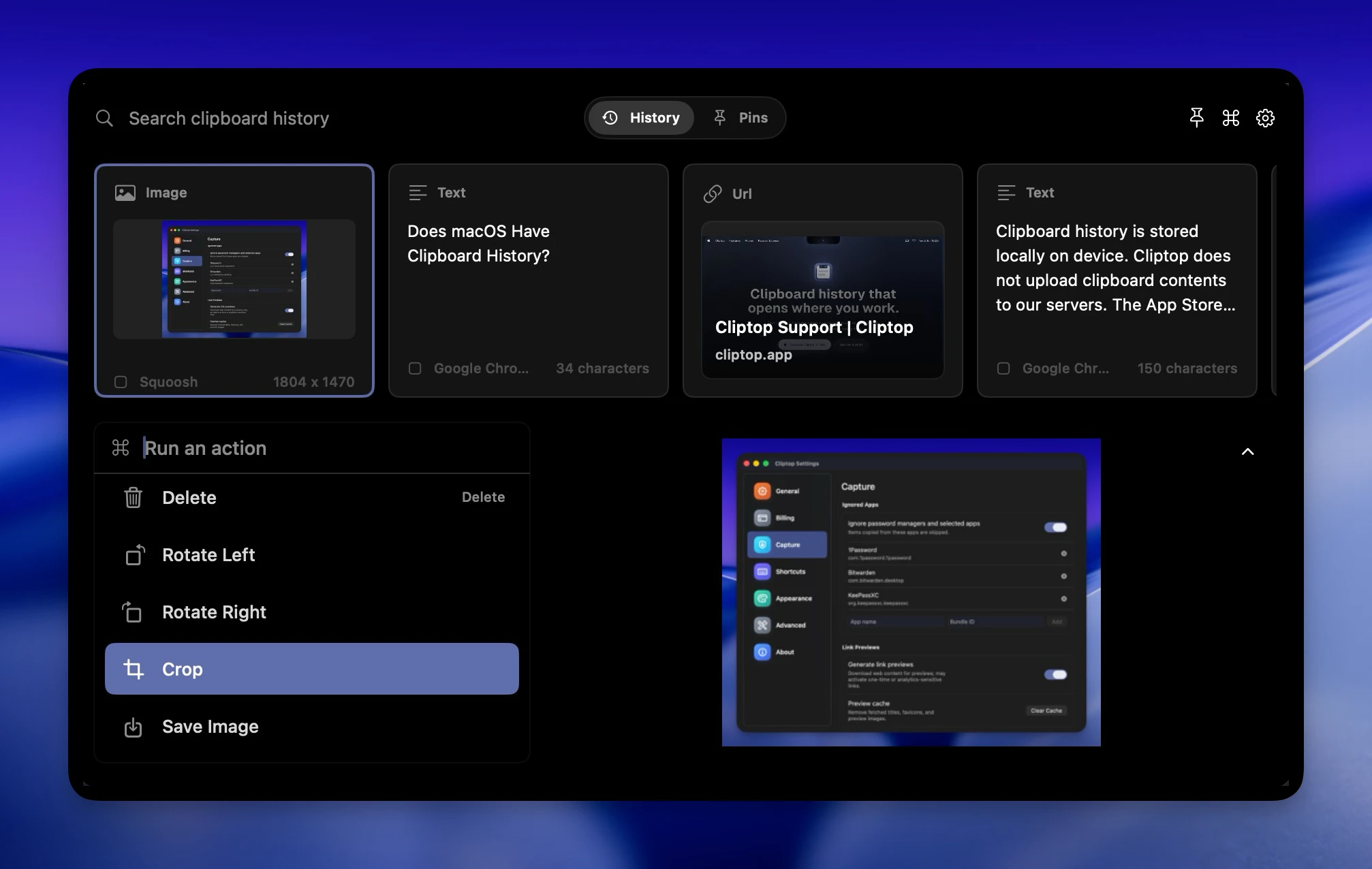
- Open clipboard history from the MacBook notch, menu bar, or Shift-Cmd-V.
- Search text, links, code, screenshots, images, files, and colors.
- Preview the copied item before you paste it.
- Paste directly back into the app you were using.
- Paste as plain text when formatting gets in the way.
- Clean tracking parameters from URLs.
- Copy links as Markdown.
- Pin reusable snippets, links, prompts, or brand colors.
- Keep clipboard history local by default, with optional private iCloud Sync.
The difference is simple: Spotlight helps you recover a recent copy. Cliptop helps you work with copied items after you find them.
Spotlight vs Cliptop: The Practical Difference
Here is the decision in one table.
| Need | Spotlight Clipboard history | Cliptop |
|---|---|---|
| Occasional recovery | Good fit | Also works, but may be more than you need |
| Built into macOS | Yes, on macOS Tahoe or later | No, it is a dedicated app |
| Fast access | Command-Space, then Command-4 | Shift-Cmd-V, menu bar, or MacBook notch |
| Search | Search inside Spotlight Clipboard mode | Search focused clipboard history |
| Mixed copied content | Good for basic recovery | Built for text, links, code, screenshots, images, files, and colors |
| Previews | Native Spotlight-style results | Clipboard-focused previews |
| Paste actions | Copy from history, then paste manually | Direct Paste, plain text paste, URL cleanup, Markdown links, pins, and more |
| Reusable snippets | Not the focus | Pinboards for reusable clips |
| Privacy model | Native macOS feature; sensitive data may appear | Local history by default, optional private iCloud Sync |
If the native table column solves your problem, use it. If you keep wanting the right-side column, try a dedicated clipboard manager.
For the deeper decision guide, read Spotlight Clipboard History vs Cliptop.
Can You See Old Clipboard History on Mac?
Usually, no. Clipboard history is not a time machine.
You can only see items that were captured after clipboard history was enabled or after your clipboard manager was installed and running. If you copied something yesterday on a Mac that was not saving clipboard history, macOS and third-party apps generally cannot reconstruct it later.
That is the practical reason to set up clipboard history before you need it. Once history is running, future copied items can be recovered, searched, or cleared depending on the tool you use.
How Cliptop Makes Clipboard History Faster
Cliptop is designed for the moment you realize you need something you copied earlier.
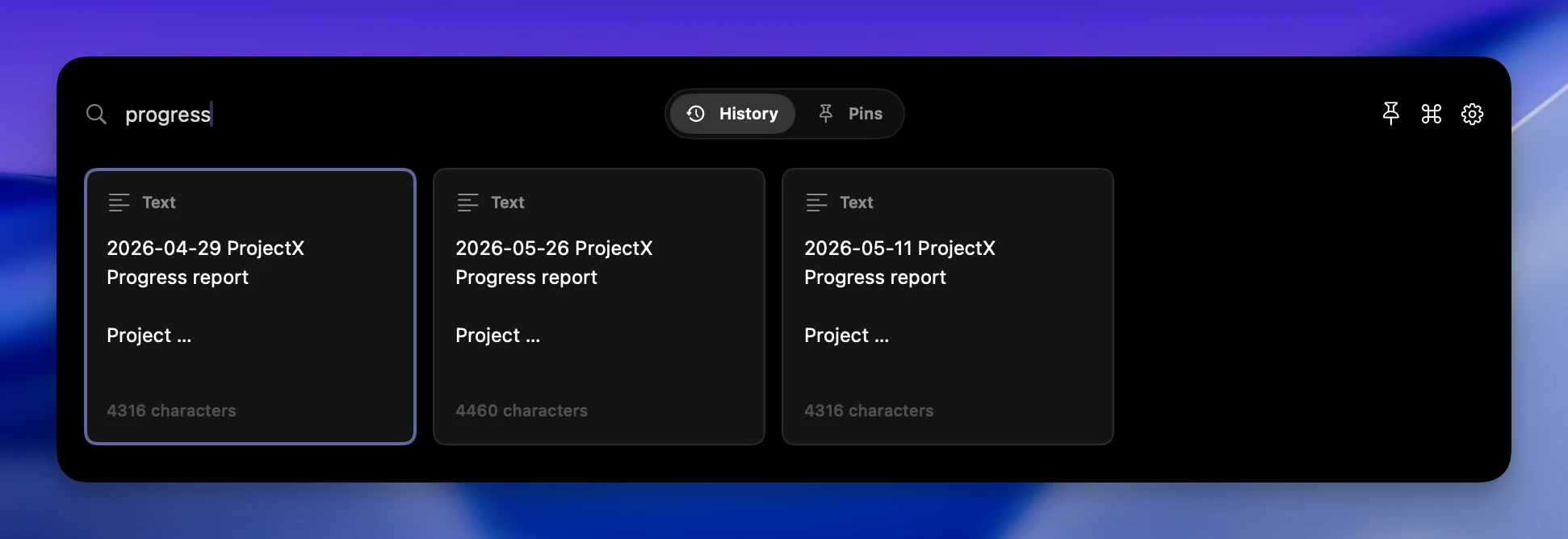
Instead of reopening browser tabs, searching chat history, or going back through notes, you open Cliptop and search your clipboard history directly. Search is focused as soon as it opens, so the next step is usually a few keystrokes away.
For writers, that might mean recovering a quote and source link. For developers, it might be a terminal command, error message, code snippet, or Markdown link. For support work, it might be a safe reply or customer link. For design and research, it might be an image, file, color, screenshot, or reference that passed through the clipboard while you were moving quickly.
Cliptop does not replace normal copy and paste. It gives you a useful history behind it, then keeps common paste actions close.
Is Clipboard History Private on Mac?
Clipboard history can contain sensitive information because people copy everything. Passwords, addresses, API keys, invoices, personal messages, screenshots, customer details, private links, and recovery codes can all pass through the clipboard during ordinary work.
Apple warns that sensitive information may appear when you first use Spotlight Clipboard history. With any clipboard history tool, ask three questions:
- Where is the history stored?
- How do I clear it?
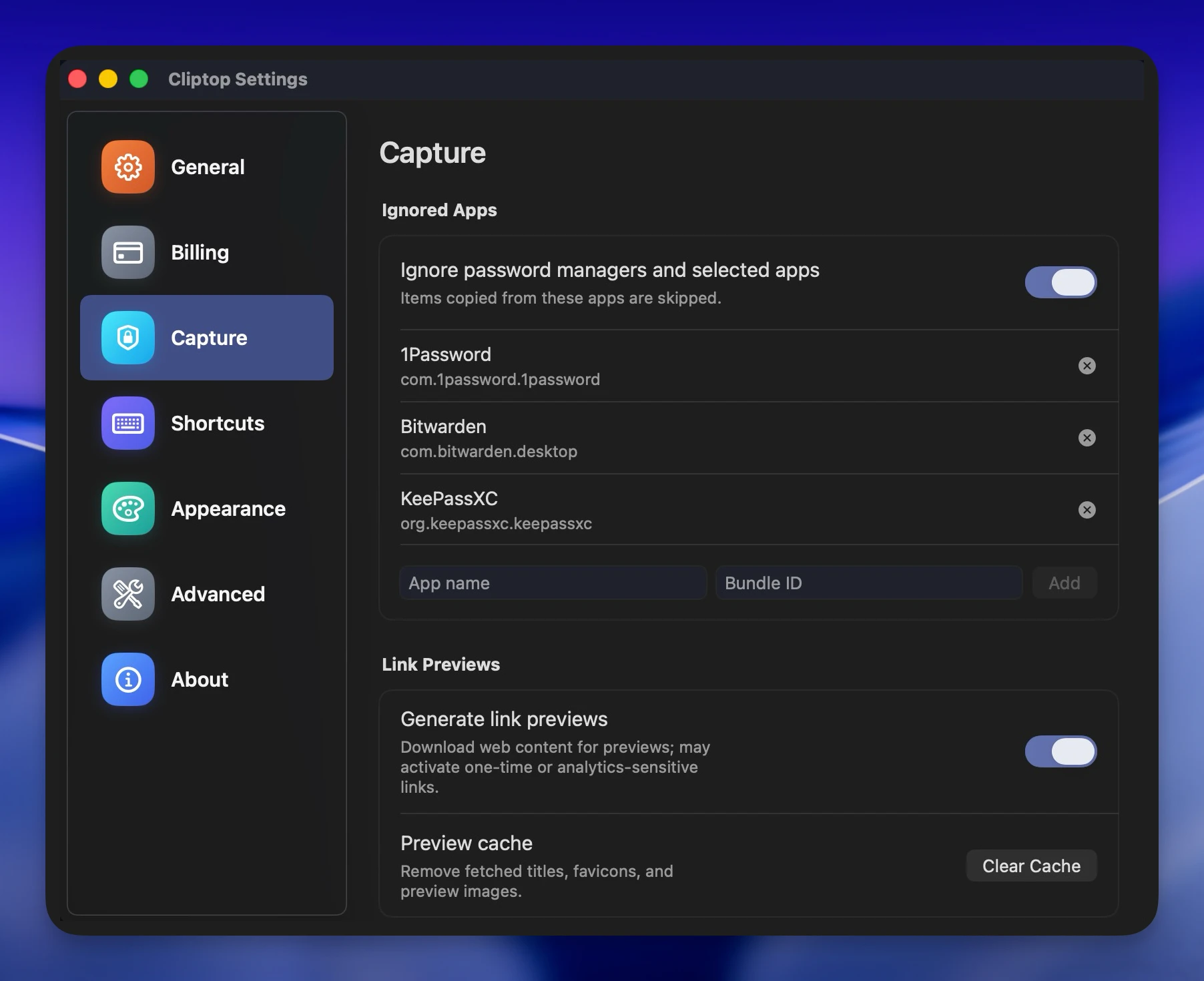
- Can I avoid saving sensitive apps or item types?
Cliptop is built for local clipboard workflows by default. Optional iCloud Sync can sync clips and pinboards through your private iCloud database, and Direct Paste is optional. If you do not enable Direct Paste, Cliptop can still restore the item to the clipboard so manual paste keeps working.
For more detail, read Is Your Clipboard Manager Private? and Why Direct Paste Needs Accessibility Permission.
Quick Setup Recommendation
Start with the native feature:
- Update to macOS Tahoe or later if your Mac supports it.
- Open Spotlight with Command-Space.
- Press Command-4 to open Clipboard history.
- Enable it if macOS asks.
- Copy a few normal test items and make sure you can find them.
If that solves your problem, you are done.
If you keep wanting faster access, previews, cleanup actions, pins, and local-first controls, download Cliptop for Mac. The Mac app includes a 7-day full-feature trial with no payment required, so you can test it against your own clipboard habits before deciding.
FAQ
Does Mac have clipboard history?
Yes, macOS Tahoe or later includes Clipboard history in Spotlight. On older macOS versions, the normal clipboard only keeps the current copied item unless you install a clipboard manager.
How do I open clipboard history on macOS Tahoe?
Press Command-Space to open Spotlight, then click the Clipboard button or press Command-4. Search for the item, copy it from history, and paste it where you need it.
Is Spotlight Clipboard history enough?
It is enough for occasional recovery. If you only need to bring back a recent copied item now and then, use Spotlight first. If you use clipboard history every day for search, previews, pins, plain-text paste, URL cleanup, or mixed content types, a dedicated clipboard manager is usually better.
Can I see clipboard history from before I enabled it?
Usually, no. Clipboard history can only show items captured after the native feature is enabled or after a clipboard manager is installed and running.
Is clipboard history private on Mac?
Clipboard history can contain sensitive information. Apple warns that sensitive information may appear in Spotlight Clipboard history. With any clipboard manager, check where history is stored, how to clear it, and which apps or item types can be ignored.
References
These pages were reviewed on July 6, 2026: Apple Search your Clipboard history in Spotlight on Mac, Apple Spotlight keyboard shortcuts on Mac, and Apple Universal Clipboard guide. For Cliptop details, see the Cliptop clipboard manager for Mac page, Spotlight Clipboard history vs Cliptop, privacy guide, and Direct Paste guide.
 Download Cliptop for Mac