
How to Paste as Plain Text on Mac
Paste text without unwanted fonts, colors, links, or spacing. Here are the shortcuts for Mac apps, Google Docs, Notion, Slack, email, and Cliptop.
To paste as plain text on a Mac, press Option-Shift-Command-V in many native Mac apps. In browser-based editors such as Google Docs, Notion, Slack, and Gmail, the shortcut is commonly Shift-Command-V instead.
Both commands solve the same problem: they paste the words without carrying over the original font, color, spacing, background, or link styling. The destination app applies its own formatting.
If neither shortcut works, open the app’s Edit menu and look for Paste and Match Style, Paste Without Formatting, or similar wording. Mac apps do not all use the same command.
Plain-text paste shortcuts by app
Use this table as a quick starting point:
| App or context | Shortcut | What to look for |
|---|---|---|
| Many native Mac apps | Option-Shift-Command-V | Paste and Match Style |
| Keynote and Pages | Option-Shift-Command-V | Edit → Paste and Match Style |
| Google Docs | Shift-Command-V | Paste without formatting |
| Notion | Shift-Command-V | Paste and match the current block style |
| Slack | Shift-Command-V | Paste text without source formatting |
| Gmail and many web editors | Shift-Command-V | Paste as plain text |
| Cliptop | Shift-Return | Paste the selected clip as plain text |
These shortcuts can change when an app intercepts paste itself, so the Edit menu is the best source of truth for the app currently in front of you. Apple documents the native command as Paste and Match Style in its Mac copy and paste guide.
Why the Mac has more than one shortcut
Copied text can contain several representations at once: plain text, rich text, HTML, links, fonts, colors, spacing, and other metadata. The receiving app decides which representation to use.
Native Mac apps often follow Apple’s Paste and Match Style convention. Many web apps follow the browser convention of Shift-Command-V for pasting without formatting. Other apps define their own behavior.
That is why the same paragraph can paste differently into Keynote, Google Docs, Notion, Slack, and an email composer. The clipboard has not changed; the destination app has chosen a different version of its contents.
How to paste and match style in Keynote
When you paste text into Keynote normally, it may keep the font, size, color, or link styling from the source. To make it match the text box or theme at the cursor:
- Click inside the destination text box.
- Choose Edit → Paste and Match Style.
- Or press Option-Shift-Command-V.
This keeps the text while letting Keynote apply the destination style. If you copied a complete slide object, image, table, or layout element, plain-text paste is not the right tool because it intentionally removes that structure.
How to paste without formatting in Google Docs
In Google Docs, press Shift-Command-V. This removes the source formatting and uses the style at your current cursor position.
It is useful when text copied from a website arrives with a different font, background color, heading size, or unwanted links. The same shortcut commonly works in Notion, Slack, Gmail, issue trackers, support tools, and other browser-based editors.
If a web app still preserves unexpected structure, the copied content may include something more complex than formatted text, such as a table or a block type the app recognizes specially.
Copy as plain text vs paste as plain text
The phrases sound interchangeable, but they describe two different moments:
- Copy as plain text creates a cleaned text-only version on the clipboard. You can then paste it normally with Command-V.
- Paste as plain text keeps the original clipboard item intact but removes its formatting when it enters the destination.
The visible result is often the same. The difference matters when you want to reuse the cleaned version several times or keep the rich version available for another app.
Cliptop supports both workflows. Select a text item and press Shift-Command-C to copy it as plain text, or press Shift-Return to paste it as plain text immediately.
The common workaround and why it gets old
A familiar workaround is to paste into TextEdit in plain-text mode, Spotlight, a browser address bar, or another scratch field. Then you copy the cleaned text and return to the original app.
It works, but it adds a detour every time formatting follows text where it does not belong. That interruption adds up when you write in docs, answer support messages, prepare presentations, edit issues, or move snippets between tools all day.
A clipboard manager can keep the cleanup action next to the copied item instead. You find the text once, choose how it should be pasted, and continue working.
How to paste as plain text from Cliptop
Cliptop gives you three ways to handle formatting:
- Paste one item as plain text: open Cliptop, select the text, and press Shift-Return.
- Copy a cleaned version: select the text and press Shift-Command-C, then paste normally with Command-V.
- Make plain text the default: enable Always paste as plain text in Cliptop Settings.
With Direct Paste enabled, Cliptop returns to the app you were using and pastes the selected item for you. Without Direct Paste, Cliptop restores the cleaned text to your clipboard so you can paste it manually with Command-V.
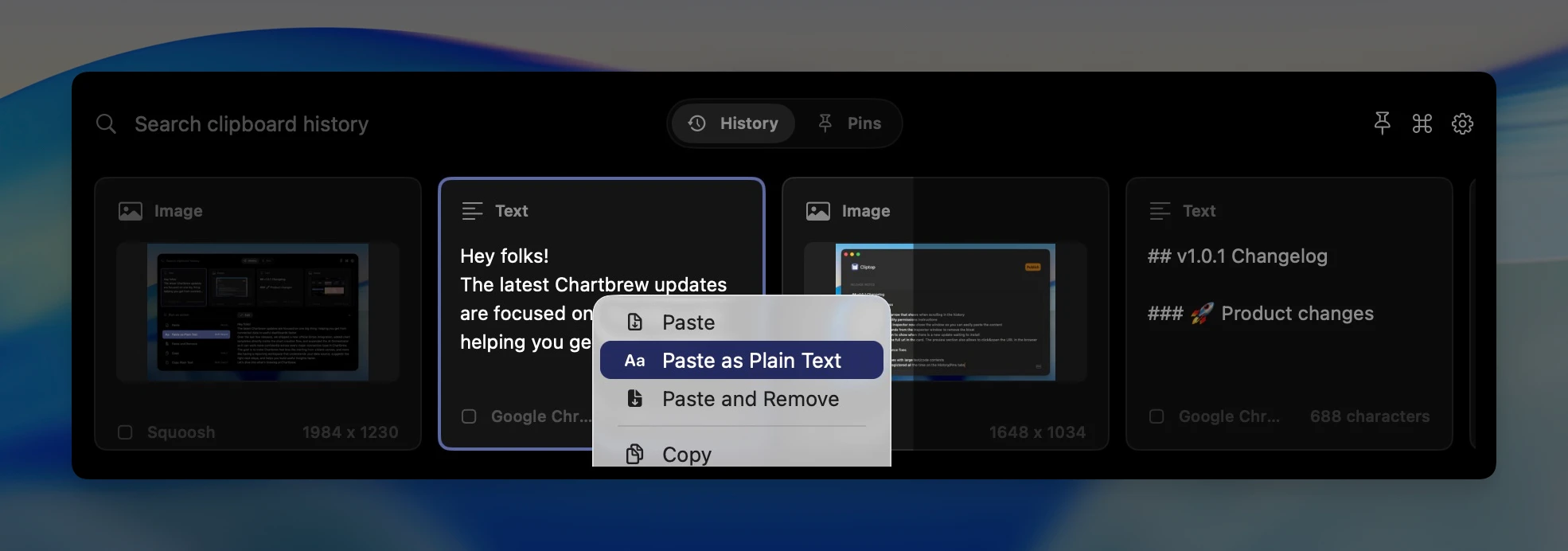
The one-off action is useful when you sometimes need rich formatting. The default setting is useful when most of your day involves browser pages, documents, email threads, support tools, chat, AI output, or issue trackers with their own styles.
For the rest of the keyboard workflow, see the complete Cliptop shortcut guide.
When plain text is not the right choice
Plain-text paste deliberately removes information. Use normal paste when you want to keep:
- A formatted section moving between similar documents.
- A linked title with its destination intact.
- A table, list structure, or styled block.
- A Figma layer, image, file, or another non-text clipboard type.
For everyday sentences, commands, comments, messages, and email replies, plain text is usually the predictable choice. For structured content, normal paste may preserve something important.
Make plain-text paste part of your default workflow
You do not need to replace Command-V everywhere. A practical setup is:
- Use normal paste when the source and destination are similar.
- Use the destination app’s plain-text shortcut when you have only just copied the text.
- Use Cliptop when you need an older item, want to inspect it first, or want one consistent plain-text action across apps.
- Enable Always paste as plain text only if formatting is unwanted most of the time.
That keeps the workflow flexible without turning every paste into a decision.
If you frequently recover older text as well as clean it, see how a clipboard manager for Mac keeps searchable history and paste actions together. For the privacy side of saved clipboard history, read Is Clipboard History Safe?.
Frequently asked questions
What is the shortcut to paste as plain text on Mac?
Press Option-Shift-Command-V in many native Mac apps. In many browser-based editors, press Shift-Command-V. Check the app’s Edit menu if neither works.
How do I paste without formatting in Google Docs?
Press Shift-Command-V in Google Docs. The pasted text adopts the formatting at the cursor instead of keeping the source styling.
How do I paste and match style in Keynote?
Choose Edit → Paste and Match Style or press Option-Shift-Command-V. This keeps the text but uses the Keynote destination style.
Is copy as plain text the same as paste as plain text?
No. Copy as plain text cleans the content before it is placed on the clipboard. Paste as plain text removes formatting when the content enters the destination. Cliptop supports both.
Can I make Cliptop always paste as plain text?
Yes. Enable Always paste as plain text in Cliptop Settings. You can still keep the richer original item in clipboard history while Direct Paste sends a plain-text version to the destination.
Quick answer
Use Option-Shift-Command-V for Paste and Match Style in many Mac apps, or Shift-Command-V in many browser-based editors. In Cliptop, press Shift-Return on a selected text item.
If formatting cleanup is a daily interruption, download Cliptop for Mac and keep plain-text paste beside your searchable clipboard history.
 Download Cliptop for Mac