
Spotlight Clipboard History vs Cliptop: When the Built-In Mac Clipboard Is Enough
macOS Tahoe adds clipboard history to Spotlight. Here is when the built-in Mac clipboard history is enough, and when Cliptop is worth using instead.
Short answer: use Spotlight Clipboard history first if you are on macOS Tahoe and only need to recover something you copied recently. It is built in, searchable, and good enough for occasional “I just copied over that” moments.
Use Cliptop if clipboard history is part of how you work. It adds Semantic Search, on-device OCR, Pinboards, Library view, snippets with template variables, content-aware actions, and optional private iCloud Sync across Mac, iPhone, and iPad.
That is the honest comparison. Apple’s native clipboard history raises the baseline. It does not replace every clipboard workflow.
What Apple Added in macOS Tahoe
macOS Tahoe adds Clipboard history to Spotlight. Apple’s Mac User Guide says you can open Spotlight with Command-Space, click the Clipboard button or press Command-4, search your Clipboard history, copy an item from history, and clear the history.
Apple also describes Tahoe’s broader Spotlight update as a way to browse apps, files, actions, and Clipboard contents from one place. That matters because Clipboard history is no longer a missing native feature for Mac users on the latest macOS.
If your question is “does Mac have clipboard history now?”, the answer is yes on macOS Tahoe or later.
If your question is “do I still need a clipboard manager?”, the answer depends on what you expect clipboard history to do.
Choose Spotlight Clipboard History If…
Spotlight is the right place to start when your needs are simple:
- You are already on macOS Tahoe or later.
- You only need to recover a copied item once in a while.
- You prefer built-in Apple features before installing another utility.
- You mostly copy text, links, images, or files for immediate use.
- You do not need pins, saved groups, cleanup actions, or a dedicated clipboard window.
- You are comfortable opening Spotlight, switching to Clipboard with Command-4, copying the item, then pasting it where you need it.
That is a perfectly reasonable workflow. Many people only need clipboard history as a safety net. They copy one thing, accidentally replace it, open Spotlight, bring the old item back, and keep moving.
For that job, native clipboard history is enough.
Choose Cliptop If…
Cliptop makes more sense when clipboard history becomes a daily tool instead of a fallback.
Choose Cliptop if you want to:
- Open clipboard history from the MacBook notch, menu bar, or Shift-Cmd-V.
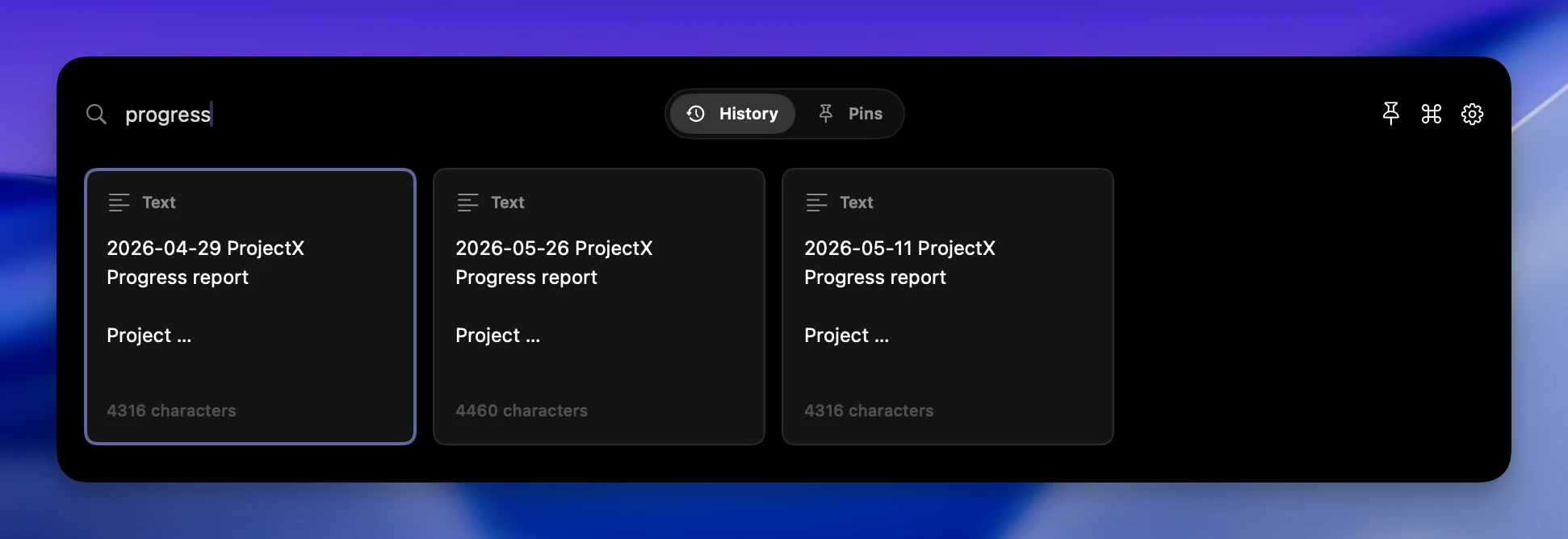
- Search text, links, code, screenshots, images, files, and colors by exact words or meaning.
- Find screenshots and images through text recognized on your device.
- Preview copied items before you paste them.
- Open files and images with macOS Quick Look.
- Paste directly back into the app you were using.
- Paste as plain text when formatting gets in the way.
- Clean tracking parameters from copied URLs.
- Copy a link as Markdown.
- Group reusable clips into Pinboards and browse them in the larger Library view.
- Expand saved snippets with template variables in any app.
- Turn recognized event details into a Calendar suggestion.
- Keep history local by default, with optional private iCloud Sync.
- Keep clips and Pinboards available across Mac, iPhone, and iPad.
The difference is not “Apple saves history and Cliptop saves history.” The difference is what happens after you find the item.
Spotlight helps you recover a recent copy. Cliptop helps you recover it, inspect it, clean it up, pin it, and paste it back into the current workflow.
Feature Comparison
| Need | Spotlight Clipboard history | Cliptop |
|---|---|---|
| Built into macOS | Yes, on macOS Tahoe or later | No, it is a dedicated Mac app |
| Fast keyboard access | Command-Space, then Command-4 | Shift-Cmd-V, notch, or menu bar |
| Best job | Recover a recent copied item | Work with copied items all day |
| Search | Search from Spotlight Clipboard mode | Keyword search, Semantic Search by meaning, and on-device OCR |
| Content types | Apple documents Clipboard history for copied items | Text, links, code, screenshots, images, files, colors, and rich previews |
| Paste flow | Copy from history, then paste with Command-V | Direct Paste when enabled, or restore for manual paste |
| Paste as plain text | Use macOS paste-and-match-style where supported | Dedicated plain-text paste action |
| URL cleanup | Not the focus | Clean URLs and copy Markdown links |
| Organization | Not the focus | Pins, Pinboards, and a larger Library view |
| Reusable text | Not the focus | Snippets with triggers and template variables |
| Smart actions | Not the focus | Create Calendar events from recognized details in copied text or images |
| File and image preview | Preview through the source or destination app | macOS Quick Look from clipboard history |
| Privacy controls | Built into macOS; Apple warns sensitive information may appear in Clipboard | Local history by default, optional iCloud Sync, sensitive-item handling, ignored-app style workflow controls |
| Cross-device story | Universal Clipboard can move a copied item between nearby Apple devices for a short time | Apps for Mac, iPhone, and iPad with optional private iCloud Sync for clips and Pinboards |
The practical takeaway: Spotlight is a recovery feature. Cliptop is a clipboard workspace that stays close to normal copy and paste.
The Workflow Difference
Here is what this looks like in real work.
You copy a customer reply from Notes, then a support link from Safari, then a tracking-heavy URL from Slack. A few minutes later, you need the original reply again, but without formatting, and you want to include the clean link as Markdown.
With Spotlight Clipboard history, you can open Spotlight, switch to Clipboard, find the reply, copy it, return to the app, and paste it. Then you still need to clean up formatting and fix the link somewhere else.
With Cliptop, the clipboard history is already built around retrieval and the next action. Search for the reply by meaning, paste it as plain text, find the URL, clean it, copy it as Markdown, and save the finished answer as a reusable snippet if you will need it again.
That is where a dedicated clipboard manager stops being “extra history” and starts becoming a small command center for copied work.
Privacy and Storage
Clipboard history deserves more scrutiny than most productivity features because the clipboard is messy. People copy passwords, API keys, customer details, private links, screenshots, account numbers, invoices, and personal messages without thinking of them as a database.
Apple acknowledges this in its Spotlight Clipboard history guide: the first time you search your Clipboard, you may be asked to enable it, and sensitive information may appear.
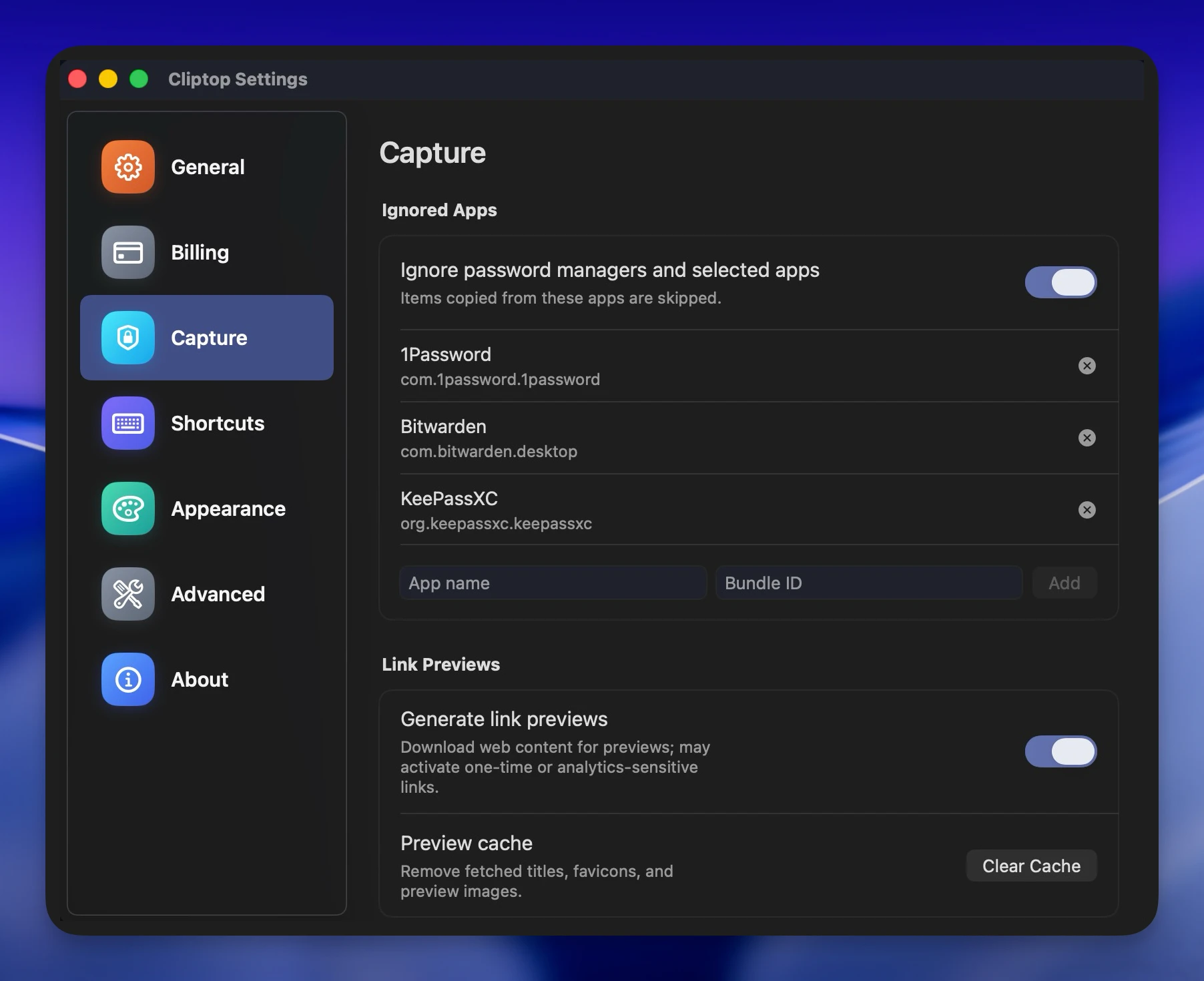
Cliptop’s stance is practical: clipboard history stays local by default. Optional iCloud Sync uses your private iCloud database, and clipboard contents are not sent to Cliptop servers for sync. Direct Paste is also optional; it uses macOS Accessibility permission so Cliptop can paste the selected item back into the app you were using. If you do not enable it, Cliptop can still restore an item to the clipboard for manual paste.
If privacy is the main reason you hesitate to install a clipboard manager, read the Cliptop privacy guide and the Direct Paste Accessibility guide. The right answer is not blind trust. The right answer is understanding where copied data lives and which permissions change the workflow.
Universal Clipboard vs Clipboard History
Universal Clipboard is useful, but it solves a different problem. Apple’s Universal Clipboard guide explains that you can copy content on one Apple device and paste it on another when the devices are signed into the same Apple Account and meet the continuity requirements. Apple also notes that copied content is available for a short time.
That is handoff, not history.
Universal Clipboard answers: “Can I copy this on my Mac and paste it on my iPhone?”
Clipboard history answers: “Can I find the thing I copied earlier?”
Cliptop can fit alongside Universal Clipboard. If something reaches your Mac clipboard, Cliptop can make it searchable later. Its own apps and optional private iCloud Sync also keep saved clips and Pinboards available across Mac, iPhone, and iPad.
Who Should Not Choose Cliptop?
Do not install Cliptop if you only want Apple’s built-in answer and your clipboard mistakes are rare. Spotlight Clipboard history is free, native, and already available on macOS Tahoe.
Do not choose Cliptop if you need a large shared team snippet library. Cliptop is built for personal Mac clipboard work, not team knowledge management.
Do not choose Cliptop if open source is non-negotiable. A tool like Maccy may be a better match for that preference.
Cliptop is for people who copy enough during the day that semantic retrieval, OCR, organization, reusable snippets, actions, cross-device access, and paste-back speed are worth a dedicated app.
The Best Setup for Most Mac Users
Start with the native feature. Press Command-Space, then Command-4, and see whether Spotlight Clipboard history solves the problem.
If it does, you are done.
If you keep wanting more control, try Cliptop:
- Download Cliptop for Mac and start the 7-day full-feature trial. No payment is required.
- Copy as you normally do. Cliptop starts saving new items after it is running.
- Open Cliptop with Shift-Cmd-V, from the menu bar, or from the MacBook notch.
- Search for a copied item by exact text or meaning, or press the shortcut again to open Library view.
- Press Enter to paste, Shift-Enter to paste as plain text, Cmd-K for actions, Cmd-P to pin, or Cmd-Y to open Quick Look for a file or image.
You do not need to reorganize your work to use a clipboard manager. The point is simpler: copy normally, then have a better answer when the clipboard matters again.
FAQ
Does macOS Tahoe have clipboard history?
Yes. macOS Tahoe includes Clipboard history in Spotlight. Apple says you can open Spotlight with Command-Space, use the Clipboard button or Command-4, search your Clipboard history, copy from it, and clear the history.
Is Spotlight Clipboard history enough?
It is enough for occasional recovery. If you only need to bring back a recent item once in a while, use Spotlight first. If you use clipboard history every day and want Semantic Search, OCR, Pinboards, snippets, Smart Actions, richer previews, or private cross-device sync, Cliptop is the stronger workflow.
What does Cliptop do that Spotlight Clipboard history does not focus on?
Cliptop focuses on daily clipboard work: notch, menu-bar, and keyboard access; local-first Mac history; Semantic Search; on-device OCR; Pinboards; Library view; snippets with variables; Direct Paste; format-specific actions; Quick Look; Calendar Smart Actions; and optional private iCloud Sync.
Does Universal Clipboard replace Cliptop?
No. Universal Clipboard lets nearby Apple devices pass copied content between each other for a short time. Cliptop keeps useful copied items searchable on your Mac and adds actions after you find them.
Can I use both Spotlight Clipboard history and Cliptop?
Yes. You can use Spotlight as the built-in fallback and Cliptop as your dedicated clipboard workflow. They solve different levels of the same problem.
References
These pages were reviewed on July 31, 2026: Apple Search your Clipboard history in Spotlight on Mac, Apple What’s new in macOS Tahoe, Apple Spotlight keyboard shortcuts on Mac, and Apple Universal Clipboard guide. For Cliptop details, see the Cliptop clipboard manager for Mac page, changelog, privacy guide, Direct Paste guide, and keyboard shortcuts guide.
 Download Cliptop for Mac