
Cliptop Keyboard Shortcuts: The Complete Guide
Learn the Cliptop keyboard shortcuts for opening clipboard history, pasting, searching, editing clips, running actions, and switching pinboards on Mac.
Cliptop is designed to feel like part of copy and paste, not another app you have to manage. The fastest way to use it is simple: open Cliptop, type what you remember, press Enter, and get back to the app you were already using.
This guide covers the main Cliptop keyboard shortcuts for Mac, grouped by what you are trying to do: open clipboard history, move around, paste, copy, edit clips, run actions, and switch between History and Pins.
If you only remember a few shortcuts, remember these:
| Shortcut | What it does |
|---|---|
| Shift-Cmd-V | Open or hide Cliptop from anywhere |
| Enter | Paste the selected clipboard item |
| Shift-Enter | Paste the selected item as plain text |
| Space | Open the selected item in the editor/preview |
| Cmd-K | Open actions for the selected item |
| Cmd-Left / Cmd-Right | Switch between History, Pins, and pinboards |
Open Cliptop from anywhere
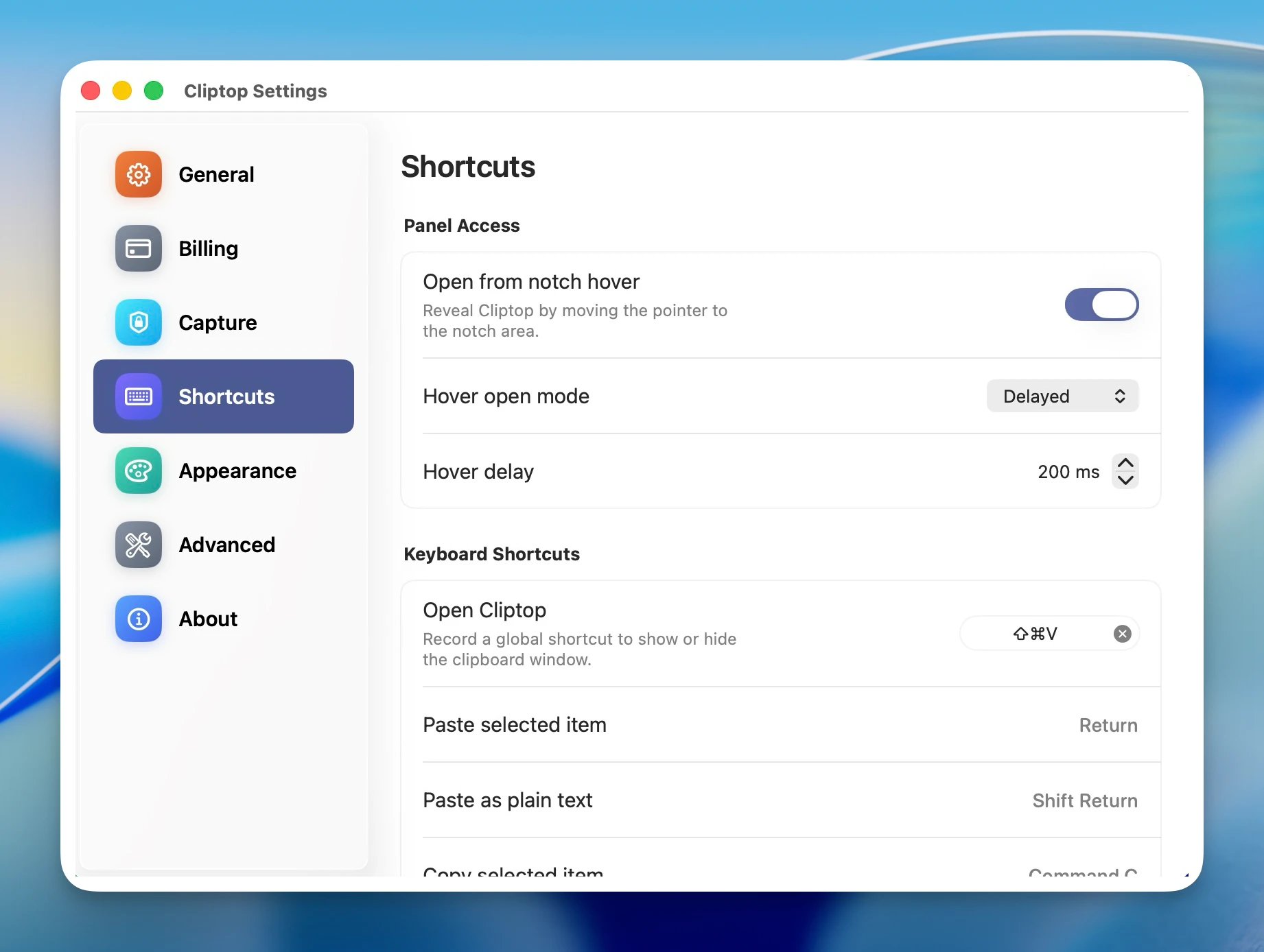
Use Shift-Cmd-V to show or hide Cliptop. This is the default global shortcut, so it works while you are writing in Notes, replying in Slack, editing code, browsing Safari, or working in another Mac app.
You can change this shortcut in Cliptop settings:
- Open Cliptop.
- Go to Settings.
- Find Keyboard Shortcuts.
- Record a new shortcut for Open Cliptop.
The point is to give your clipboard history one reliable entry point. When you know Cliptop is always one shortcut away, you can copy more freely and recover items without retracing your steps.
Search and move around clipboard history
When Cliptop opens, search is ready. Type part of the copied text, URL, file name, color, or snippet you remember. Then use the keyboard to move through results.
| Shortcut | What it does |
|---|---|
| Cmd-F | Focus search |
| Up / Down | Move through search results or action results |
| Left / Right | Move across items when search is empty |
| Escape | Close the current panel, or close Cliptop when that setting is enabled |
The search workflow is intentionally short: open Cliptop, type, choose, paste. You should not need to organize clipboard history before it becomes useful.
Paste from clipboard history
For most people, this is the main Cliptop flow. Select a clipboard item and press Enter.
| Shortcut | What it does |
|---|---|
| Enter | Paste the selected item |
| Shift-Enter | Paste the selected item as plain text |
| Cmd-C | Copy the selected item back to the clipboard |
| Shift-Cmd-C | Copy the selected item as plain text |
Use Enter when you want Cliptop to place the item back into the app you were using. Use Shift-Enter when formatting would get in the way, such as when pasting into email, docs, issue trackers, chat, forms, or code comments.
If Direct Paste is not enabled, Cliptop can still restore the item to your clipboard. You can then press Cmd-V in the target app. Direct Paste makes the final step faster, but the shortcut workflow still works without it.
Open actions for the selected clip
Cliptop is more than a list of old copies. Every selected item can have useful actions attached to it.
| Shortcut | What it does |
|---|---|
| Cmd-K | Open searchable actions for the selected clip |
| Down | Open the selected clip’s detail/action area |
| Up / Down | Move through available actions |
| Enter | Run the highlighted action |
| Escape | Close the action area |
Use Cmd-K when you already know you want an action. Type to filter actions, then press Enter.
Use Down when you want to inspect the selected clip first. This opens the detail area, where you can move through available actions with the arrow keys.
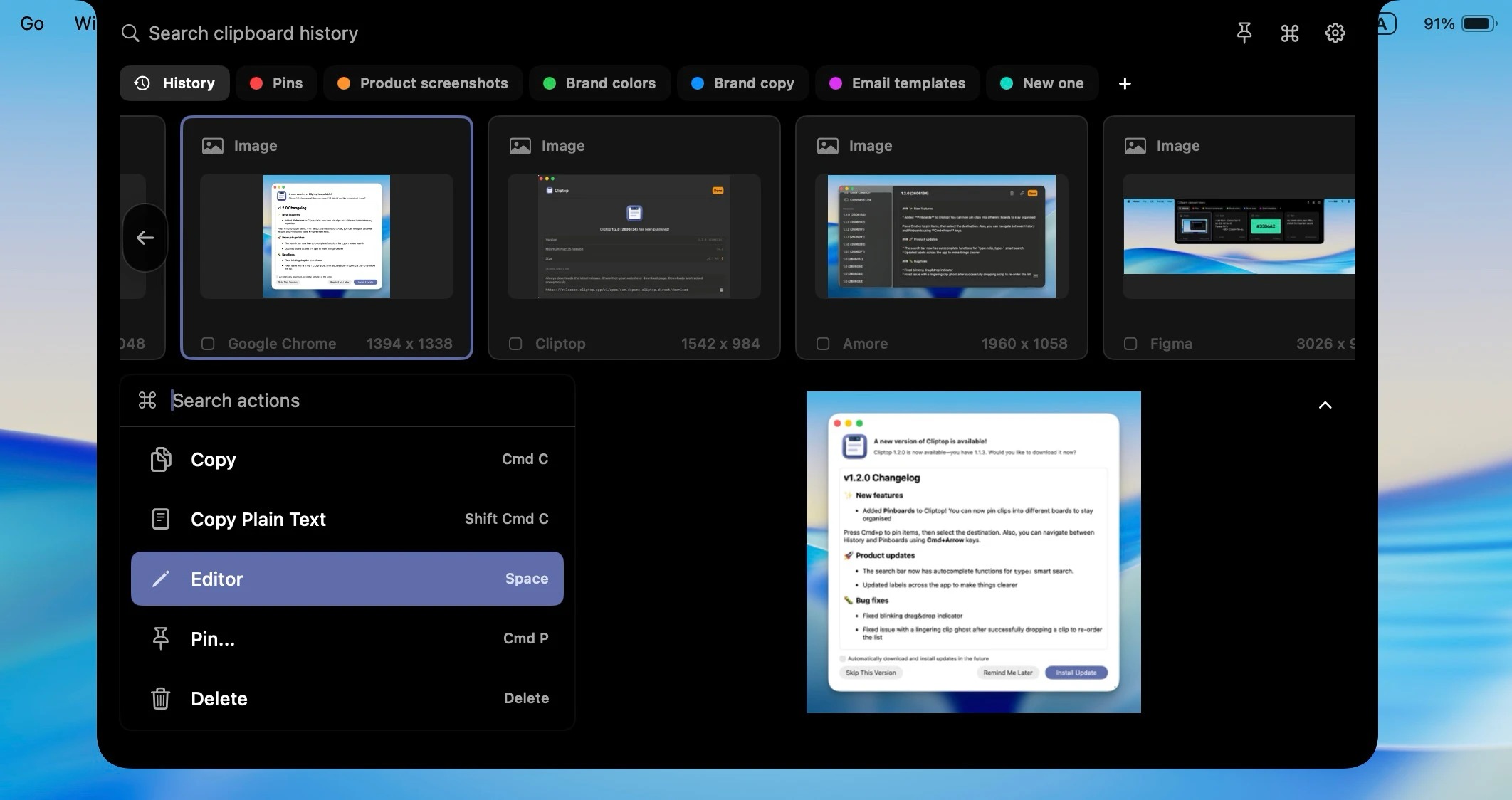
Actions depend on what you copied. A text clip may offer cleanup actions like trimming whitespace, changing case, or removing line breaks. A URL may offer actions such as copying a clean link, copying a Markdown link, or copying the domain. Images, files, colors, and code snippets get actions that match their format.
Preview and edit clips
Press Space to open the selected item in the editor or preview.
| Shortcut | What it does |
|---|---|
| Space | Open editor/preview for the selected item |
| Cmd-K | Open actions from the editor |
| Escape | Return from the editor or close the open panel |
This is useful when you want to check an item before pasting it. For example, you might preview a long text snippet, inspect a copied color, check an image, or open actions for a code block.
Pin items and switch pinboards
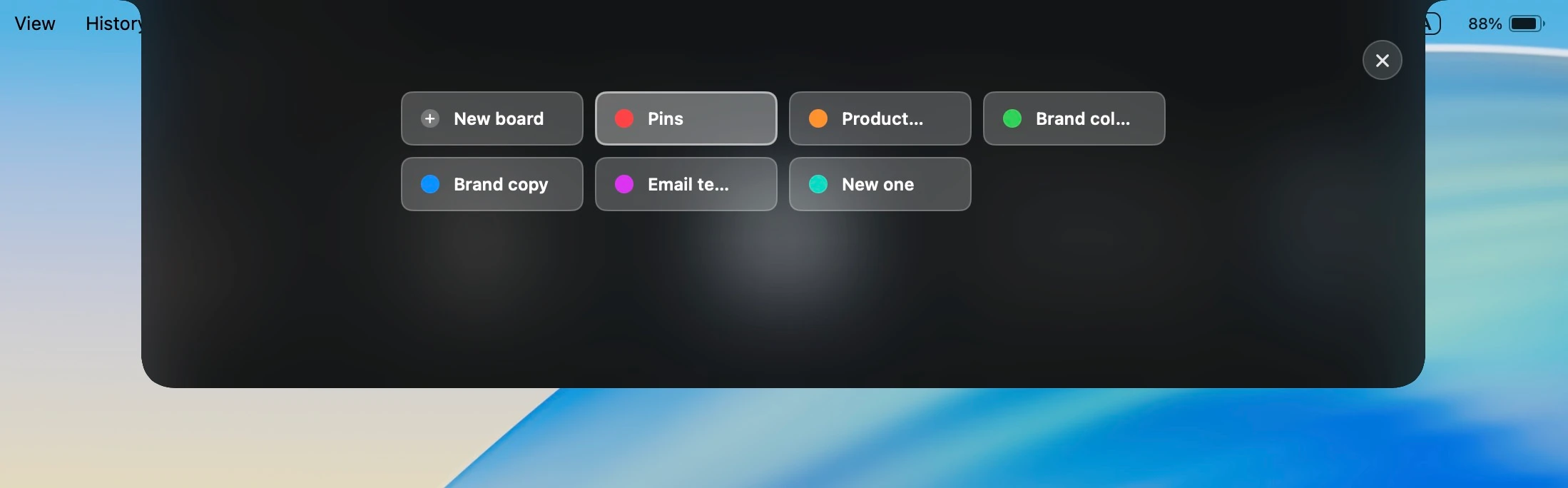
Pins are for clips you want to reuse, not just recover once. Cliptop keeps pinboard navigation keyboard-friendly so saved items do not become a separate filing chore.
| Shortcut | What it does |
|---|---|
| Cmd-P | Pin the selected item, or choose a pinboard |
| Cmd-Left / Cmd-Right | Switch between History, Pins, and pinboards |
| Arrow keys | Move through pinboard choices when the picker is open |
| Enter | Confirm the highlighted pinboard choice |
| Escape | Close the pinboard picker |
Use this when you copy something you know you will need again: a support reply, a command, a URL, a snippet, a color, or a reusable line of text.
Delete clips with the keyboard
Use Delete to remove the selected item when you are in the main history view and search is empty.
This is useful for quick cleanup after copying temporary text, screenshots, test data, or anything you do not want to keep in history. For larger cleanup, use Cliptop’s settings and history controls.
Recommended daily workflow
Here is the keyboard-first Cliptop workflow most people should start with:
- Press Shift-Cmd-V to open Cliptop.
- Type a word from the item you copied.
- Use Up or Down if you need to choose a different result.
- Press Enter to paste it, or Shift-Enter to paste it as plain text.
- Press Cmd-K when you need cleanup, link, color, image, file, or code actions.
- Press Cmd-P for anything worth saving to Pins.
That covers the important loop: open, search, paste, act, and pin.
Full Cliptop shortcut reference
| Function | Shortcut | Result |
|---|---|---|
| Open Cliptop | Shift-Cmd-V | Show or hide the clipboard window from anywhere |
| Search | Cmd-F | Focus the search field |
| Paste | Enter | Paste the selected item |
| Plain-text paste | Shift-Enter | Paste the selected item without formatting |
| Copy | Cmd-C | Copy the selected item back to the clipboard |
| Copy plain text | Shift-Cmd-C | Copy the selected item without formatting |
| Actions | Cmd-K | Open searchable actions for the selected item |
| Detail/action area | Down | Open the selected clip’s detail/action area |
| Editor/preview | Space | Open the selected item in the editor or preview |
| Pin | Cmd-P | Pin the selected item or choose a pinboard |
| Switch tabs/pinboards | Cmd-Left / Cmd-Right | Move between History, Pins, and pinboards |
| Navigate | Arrow keys | Move through items, search results, actions, or picker choices |
| Run action / confirm | Enter | Run the highlighted action or confirm the highlighted choice |
| Delete | Delete | Delete the selected item where available |
| Close | Escape | Close the current panel or dismiss Cliptop when enabled |
Cliptop is built for the small moments that interrupt Mac work: finding a copied line again, pasting without formatting, cleaning a link, saving a reusable snippet, or previewing a clip before it lands somewhere important.
Start with Shift-Cmd-V, Enter, Space, and Cmd-K. Once those feel natural, the rest of the shortcuts turn Cliptop into a faster clipboard command center for your Mac.
 Download Cliptop for Mac