
Memorable
Open clipboard history from a place you remember.
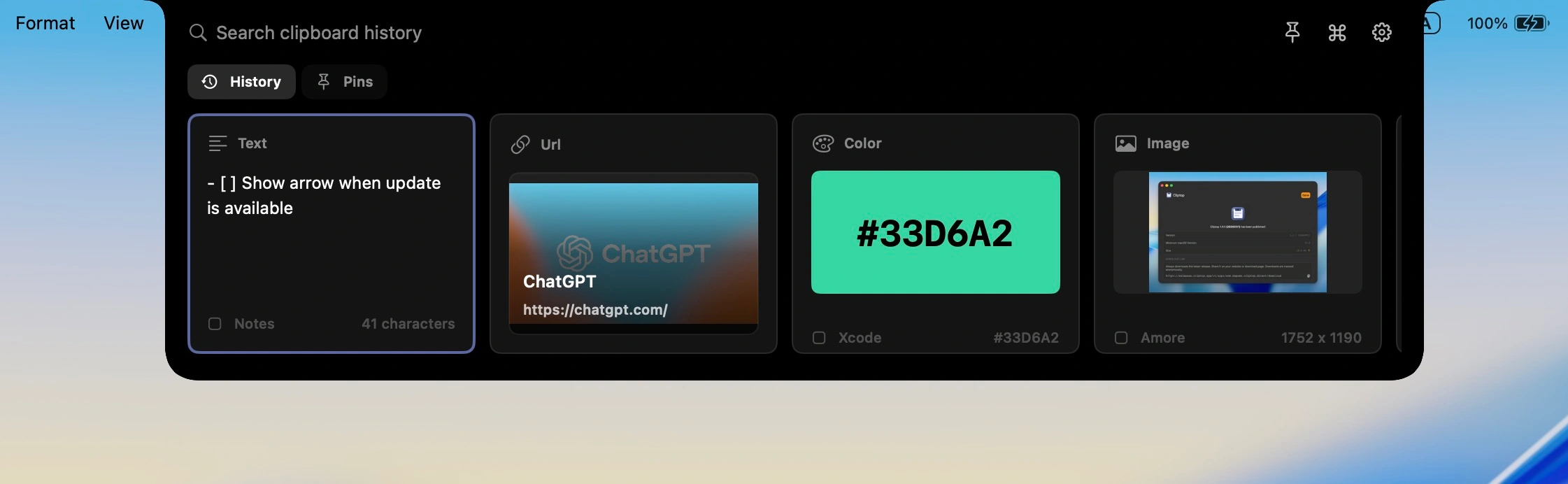
Instead of hunting for a window, Cliptop appears from the notch area and keeps the interaction anchored to the MacBook screen.
 Cliptop
 MacBook notch clipboard manager
Cliptop opens from the notch so recent copies, search, and paste actions are always close. Recover text, links, code, screenshots, files, images, and colors without turning your clipboard into another app to manage.
The notch hook
Mac power users already live near the top of the screen: menu bar, status items, app controls, and keyboard shortcuts. Cliptop makes that space useful by putting clipboard history one gesture away.
Memorable
Instead of hunting for a window, Cliptop appears from the notch area and keeps the interaction anchored to the MacBook screen.
Fast
Open Cliptop and type. Recent copies, previews, and actions are available without moving work into a separate clipboard library.
Flexible
The notch is the signature entry point, but Cliptop keeps the same workflow available on external displays and non-notch Macs.
Useful
Paste plain text, clean URLs, copy Markdown, inspect colors, and paste back from the same compact command center.
How it works
The goal is simple: get back the item you need and act on it before your attention leaves the current app.
Hover near the MacBook notch, use the menu bar, or press Shift + Cmd + V.
Find copied text, links, code snippets, screenshots, files, images, and colors with previews that make the right item obvious.
Use Direct Paste when enabled, or restore the item to the clipboard and paste manually. Run format-specific actions when the copied item needs cleanup.
Works like a Mac utility
The visual hook gets attention, but the product still has to be dependable for daily work: fast, local, keyboard-friendly, and clear about permissions.
Cliptop does not require cloud sync for the copied items you search and reuse.
Accessibility is only needed for Direct Paste. Cliptop still works without it by restoring items to the clipboard.
When there is no notch, the menu bar and shortcut keep the workflow available.
Pricing
Start with the Mac app. Try every Pro feature, then choose yearly or lifetime access when you are ready.
Trial
Try every Cliptop Pro feature from the Mac app.
3-day trial
Yearly
Full Cliptop Pro access for one year.
per year
Lifetime
Most popularPay once and keep Cliptop Pro.
one-time purchase
Already bought Cliptop? Recover your license key.
Questions
No. The notch is the most memorable way to open Cliptop on supported MacBooks, but Cliptop also works from the menu bar and Shift + Cmd + V on any Mac screen.
The notch sits at the top center of the screen, close to the menu bar and away from your document content. That makes it a natural place to reveal a compact clipboard command center without covering the app you are using.
Cliptop still works. Use the menu bar placement or keyboard shortcut when the notch is not available on the active screen.
No. Notch access is just an opening method. Clipboard history still stays local on your Mac, and Direct Paste remains optional.
Cliptop for Mac
Download the app, try every Pro feature, and decide after it has been in your workflow.